05Team enablement
Building and owning a design system
Decisiv's platform had grown over nearly 15 years across multiple applications, each built on a different UI library: no shared design standard, duplicated effort, and no common foundation to build from as the company planned its next generation of products.
For seven years, I was the primary designer and owner of KeyDS, working alongside a consistent tech lead and a PM, while other designers and developers contributed as they joined and left the company. I took an inherited design language and built it into a system: designing every component and icon, writing usage documentation with Storybook playgrounds, QA-ing implementation, coordinating with developers, and advising on what the system should invest in next.
The motivation was straightforward: systematize the repeatable work so the team could save its energy for what's actually novel.
Impact at a Glance
43
Components built and maintained
276
Unique icons designed
7
Years stewarding the system
Self-serve
Engineers built internal tools with KeyDS components, without design involvement
You did a really fantastic job with the Figma/Component restructure. The ground-work which you've built will really allow the team to streamline our components and how they function.
Discovery
When I joined Decisiv, a design director had recently established a new design language for the company, covering typography, color, and visual direction. That work was recent and actively in use. My starting point wasn’t a blank canvas. But it also wasn’t a system.
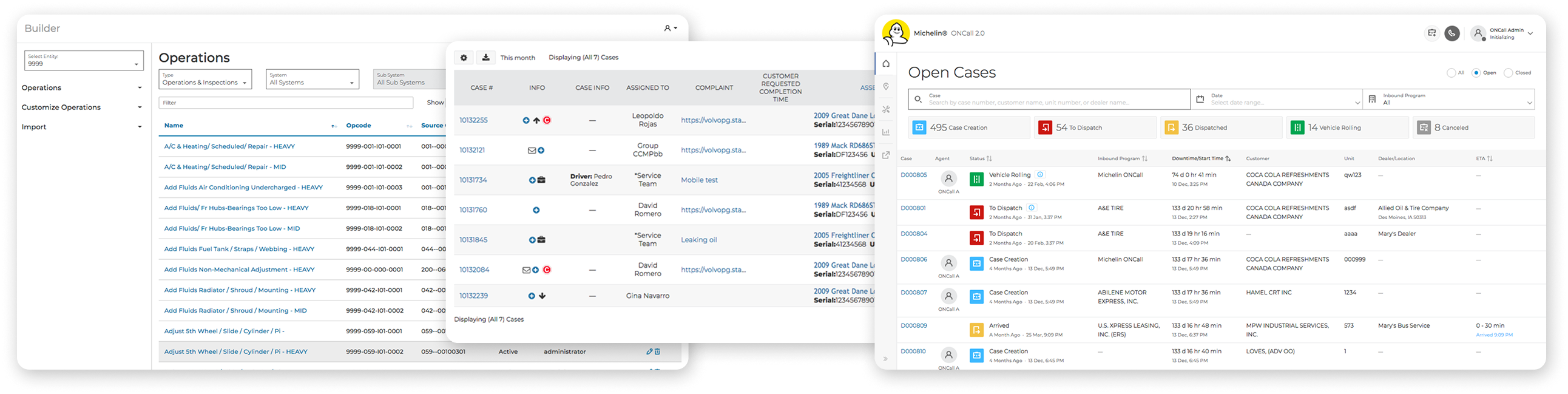
Before building anything, I audited the existing apps to map the landscape: accordions, date selectors, filters, lists, pagination, tabs, tables, navigation.
Foundation
Typography
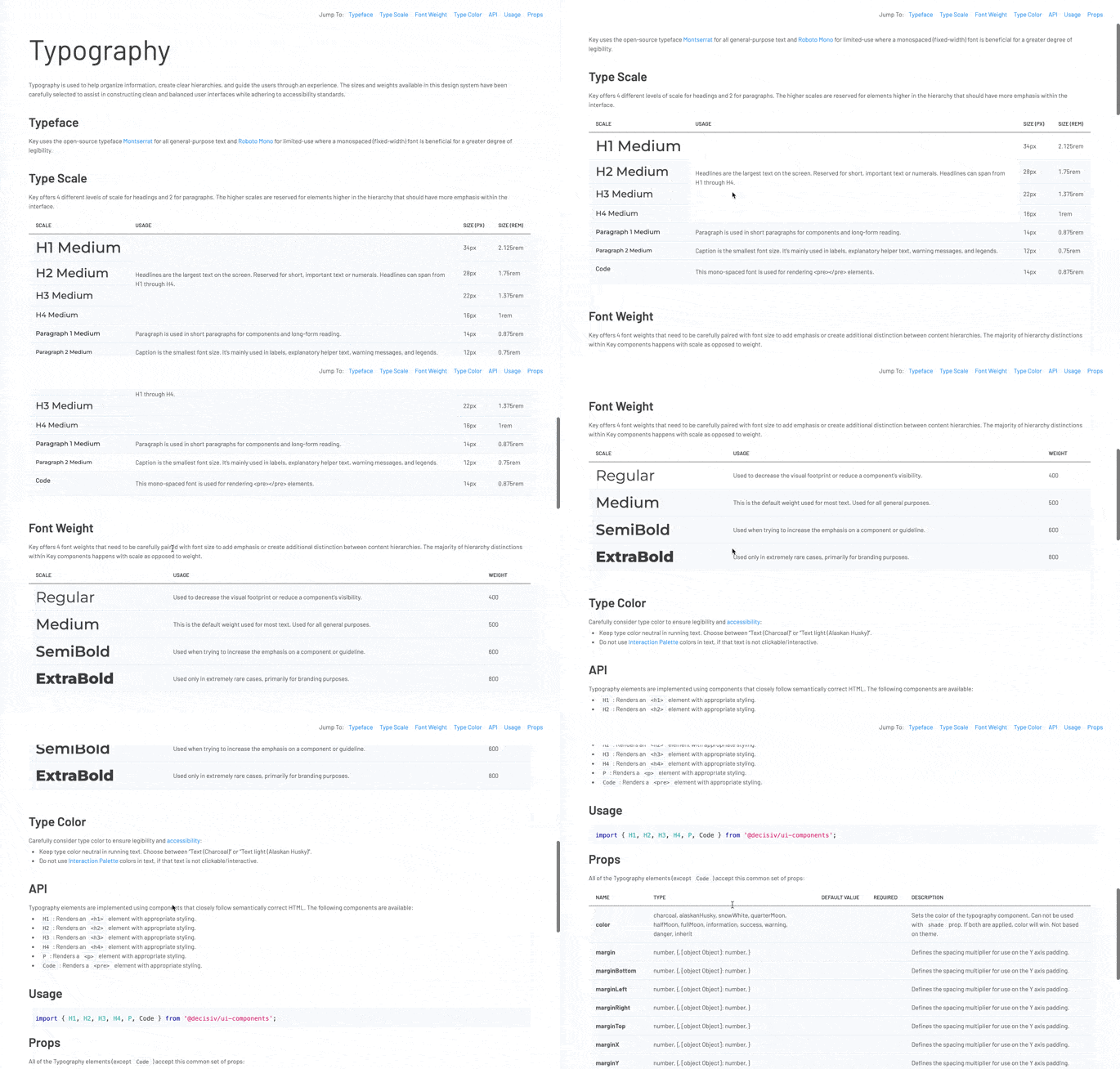
The typefaces were established before I joined: Montserrat for general-purpose text, Roboto Mono for monospaced contexts. Another designer had systematized the scale into four heading levels, two paragraph sizes, and four weights. I inherited this foundation.
Color and Theming
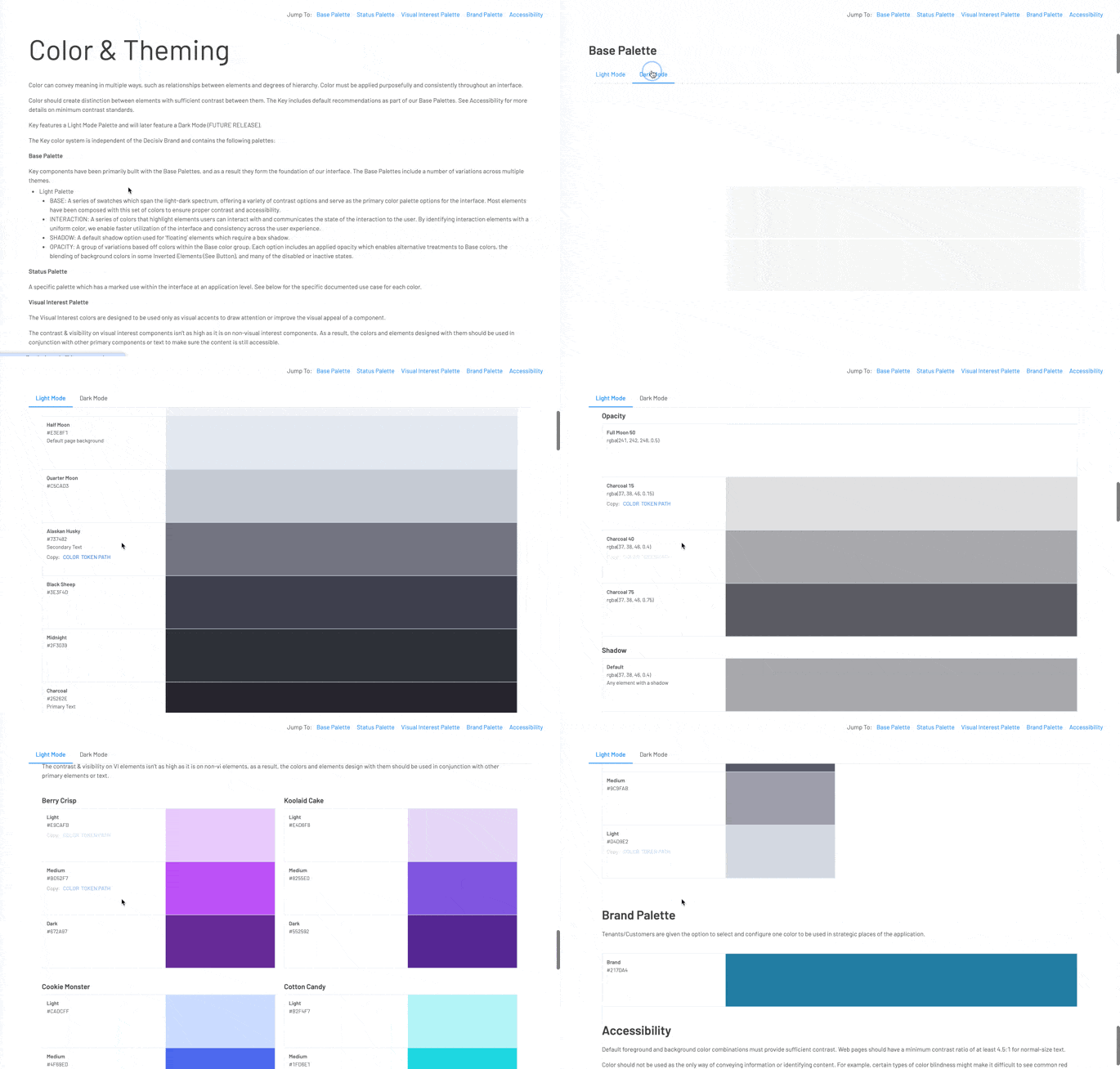
I inherited an existing palette and expanded it as the system matured: a base palette for neutrals and interaction colors, a semantic status palette, a visual interest palette for data differentiation, and a brand palette. The system supported dark mode and a configurable brand color for enterprise tenants.
The original blues, reds, and greens were dark and desaturated. I advocated for saturating them to make the interface feel more vibrant and modern, and verified every color against accessibility contrast requirements.
Iconography
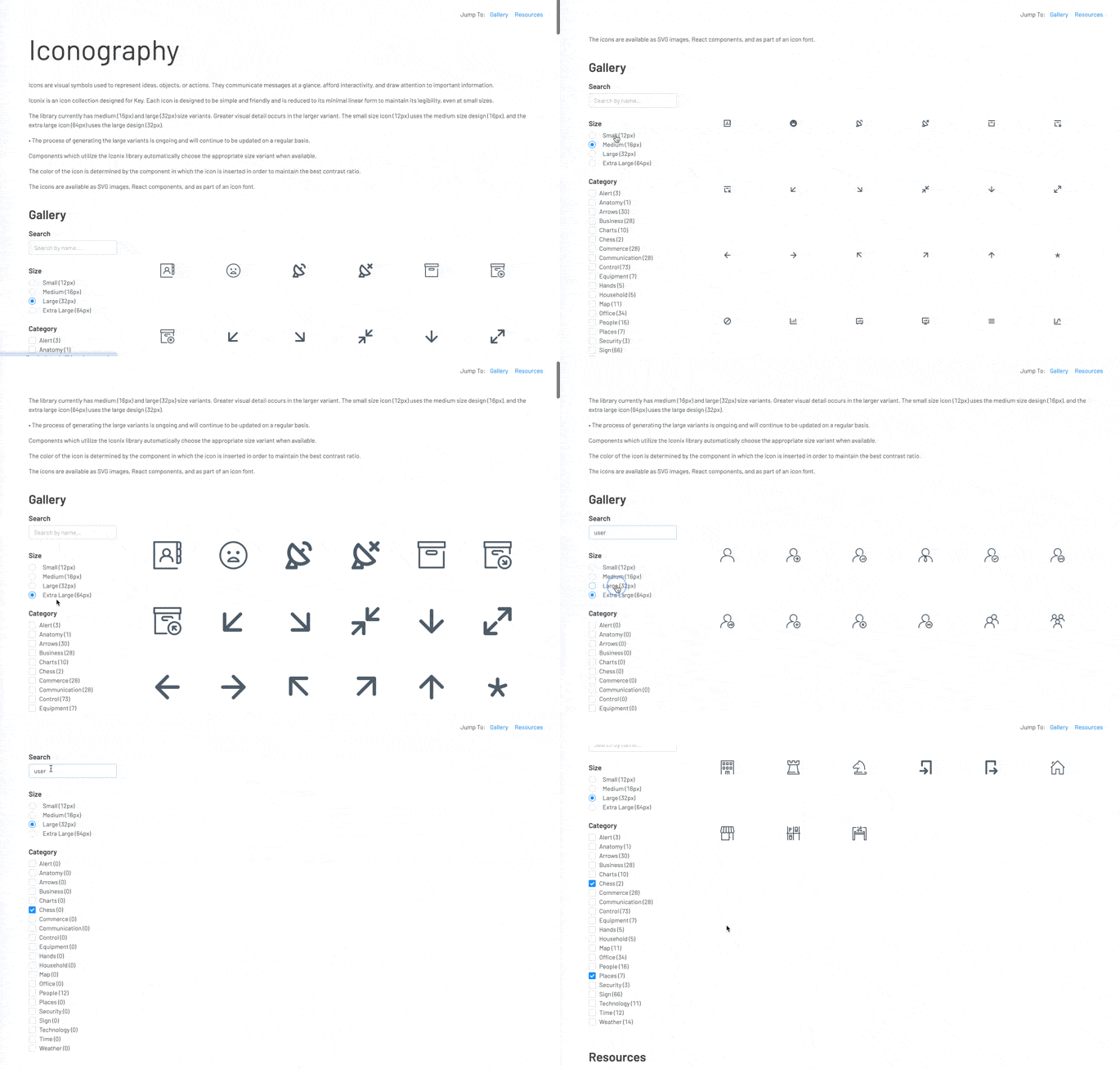
During the audit, I found icons from multiple libraries coexisting across the same products, with different icons for the same action depending on where you were. We looked at existing icon libraries, but none covered domain-specific needs like fleet and vehicle iconography, so the design team decided to build its own: Iconix.
I designed 276 icons over the course of many years, as needs arose. Each is optimized for smaller sizes (12px and 16px), but 70% also had a higher-detail version for larger canvases that could carry more detail (32px and 64px). Components automatically select the appropriate size variant.
How we worked
Making a component
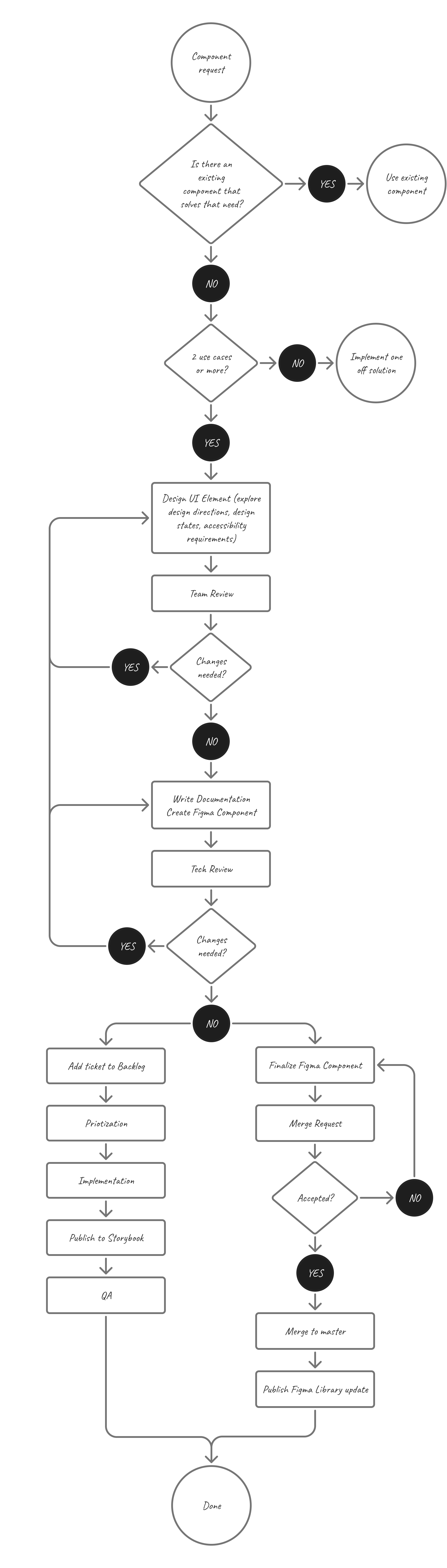
I designed almost every component that shipped, with three exceptions. The process was the same regardless of who led it: design all variants and states in Figma, bring options to the design team for review, and finalize based on their feedback. Then document usage guidelines and brief developers, demoing both the component and how it would be organized in Storybook, and make changes when their feedback surfaces valid concerns. Once that was settled, work with the PM to prioritize implementation and QA the finished component in Storybook.
Communicating component status
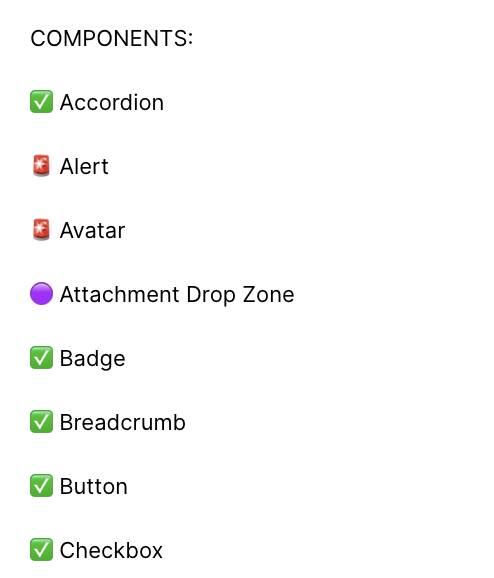
I was also the owner of the Figma library. I structured the file with one component per page, and each page used a component name and emoji to communicate status. This kept designers from including unreleased components in handoffs without realizing it, which would surface as a blocker when developers went to implement.
Making an icon
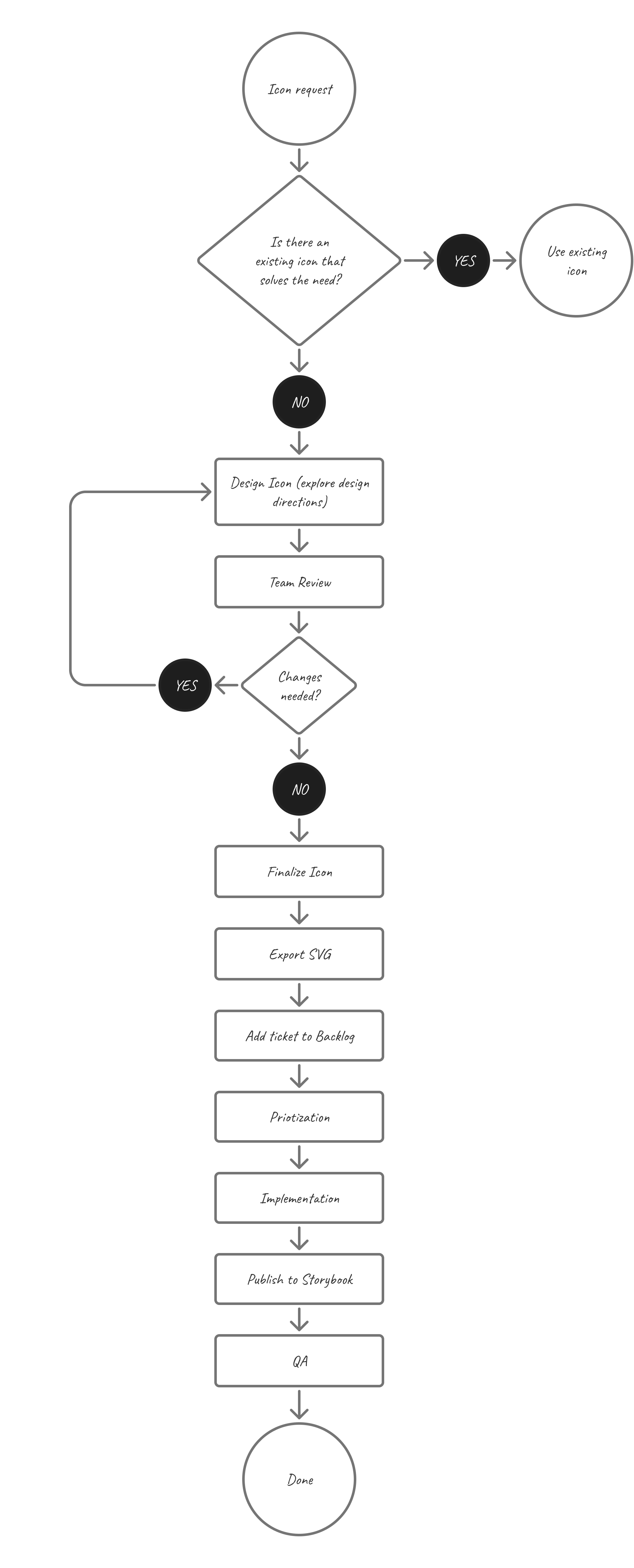
I designed every icon individually; final versions were selected through a team vote at the weekly design sync.
Supporting developers
Beyond the initial component brief, the work was ongoing. I held regular syncs with the tech lead and developers, and stayed available in Slack for questions that came up in the flow of building. As more teams started self-serving with the library, those questions often weren’t about new components. They were about fit: which existing component solved a use case, how to combine patterns, or whether something warranted a new component at all.
The components
Most of the catalog came together in the first year or so. After that, the work shifted from designing new components to expanding and refining what already existed, adding something new only when a real need surfaced. That process produced 47 components, 43 of them implemented by the time I left:
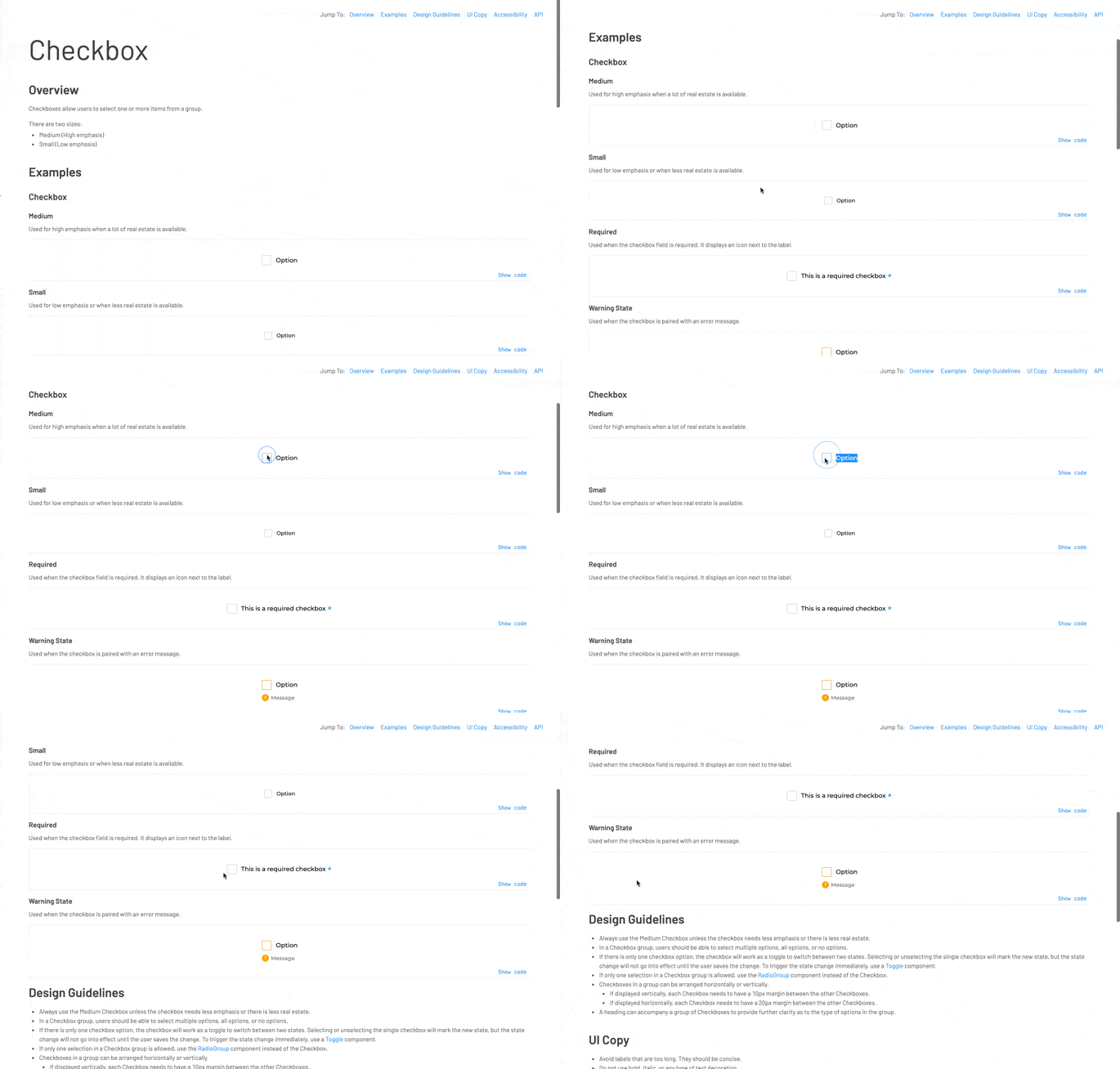
Actions 1
Button
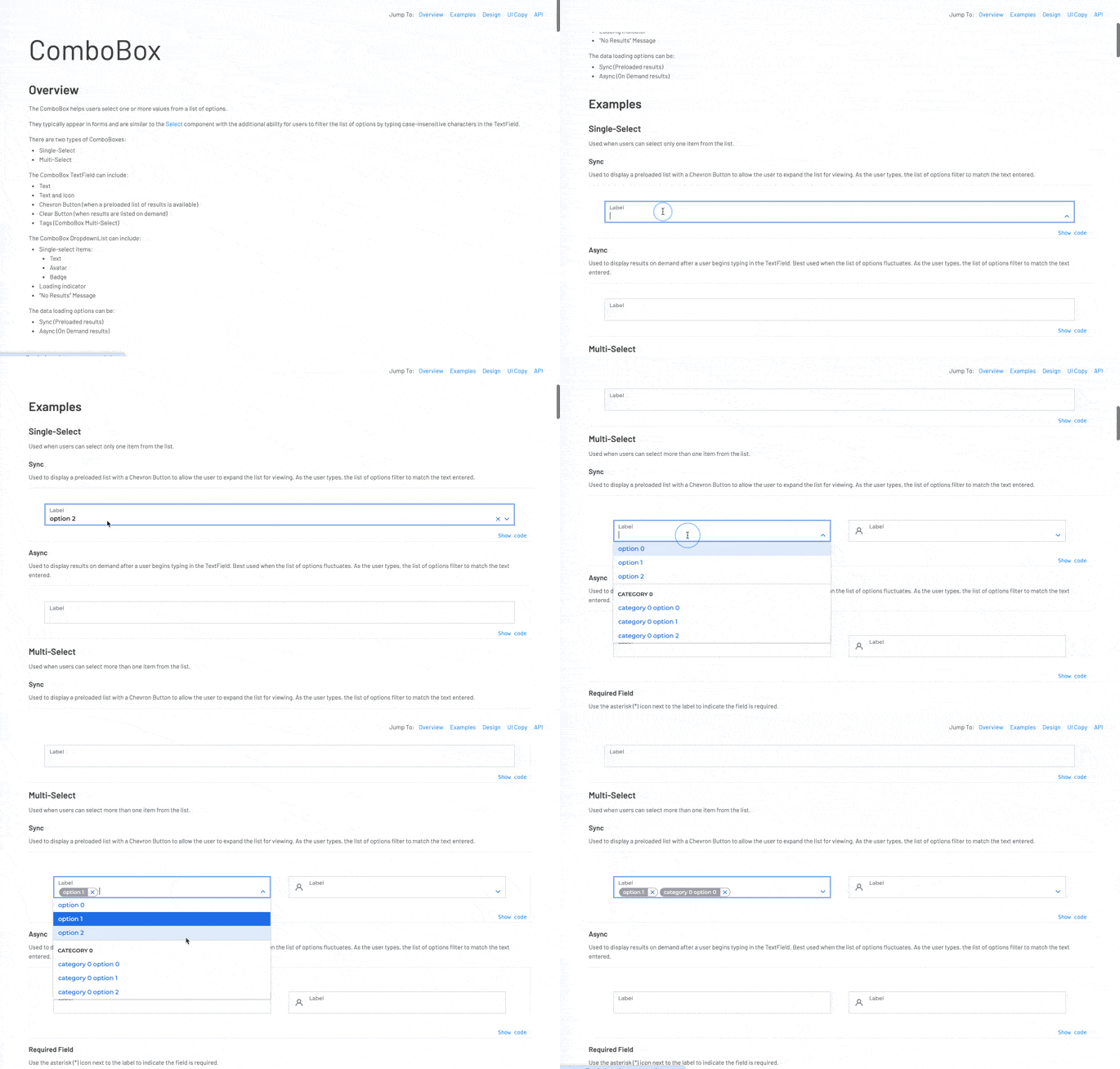
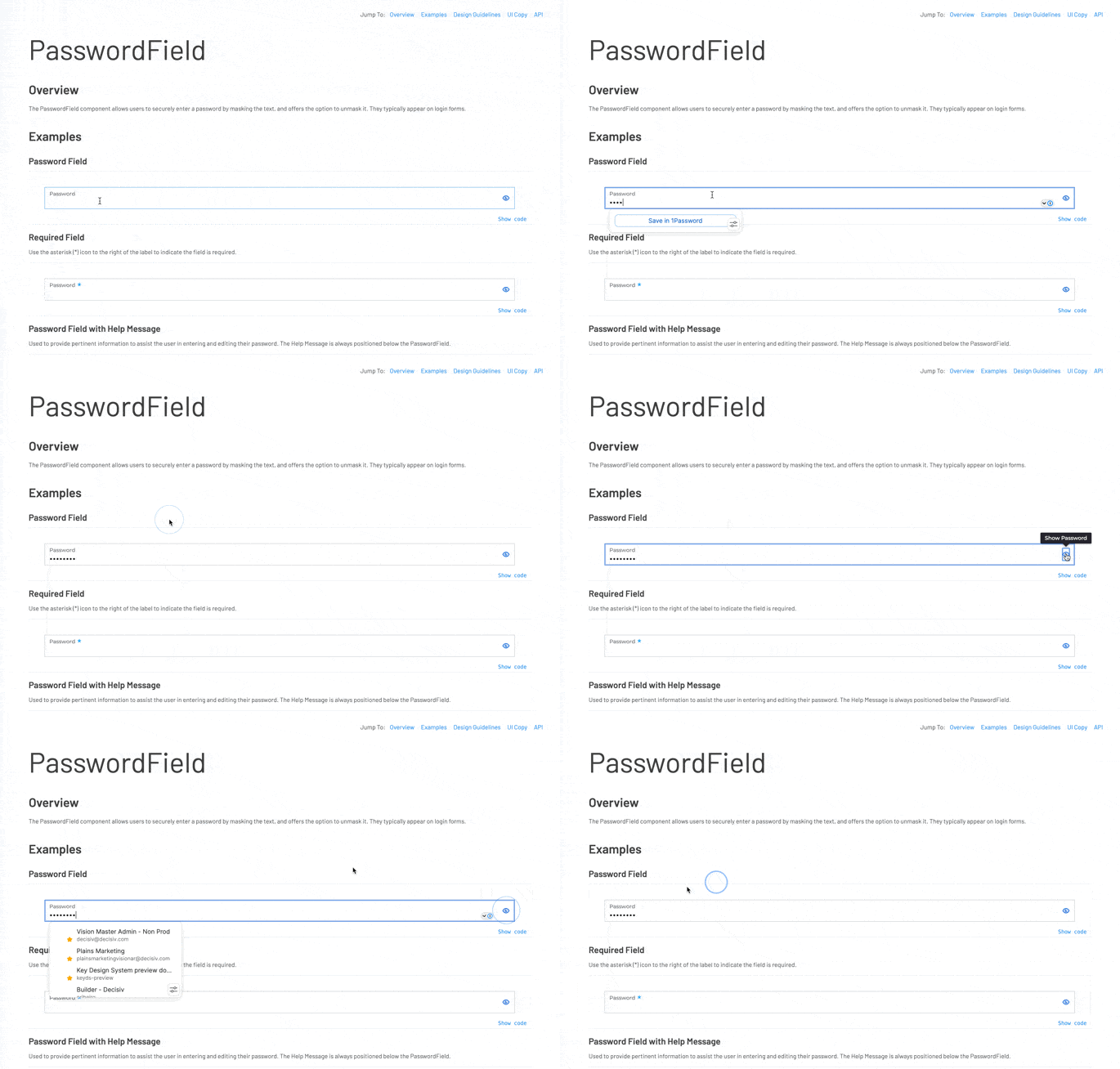
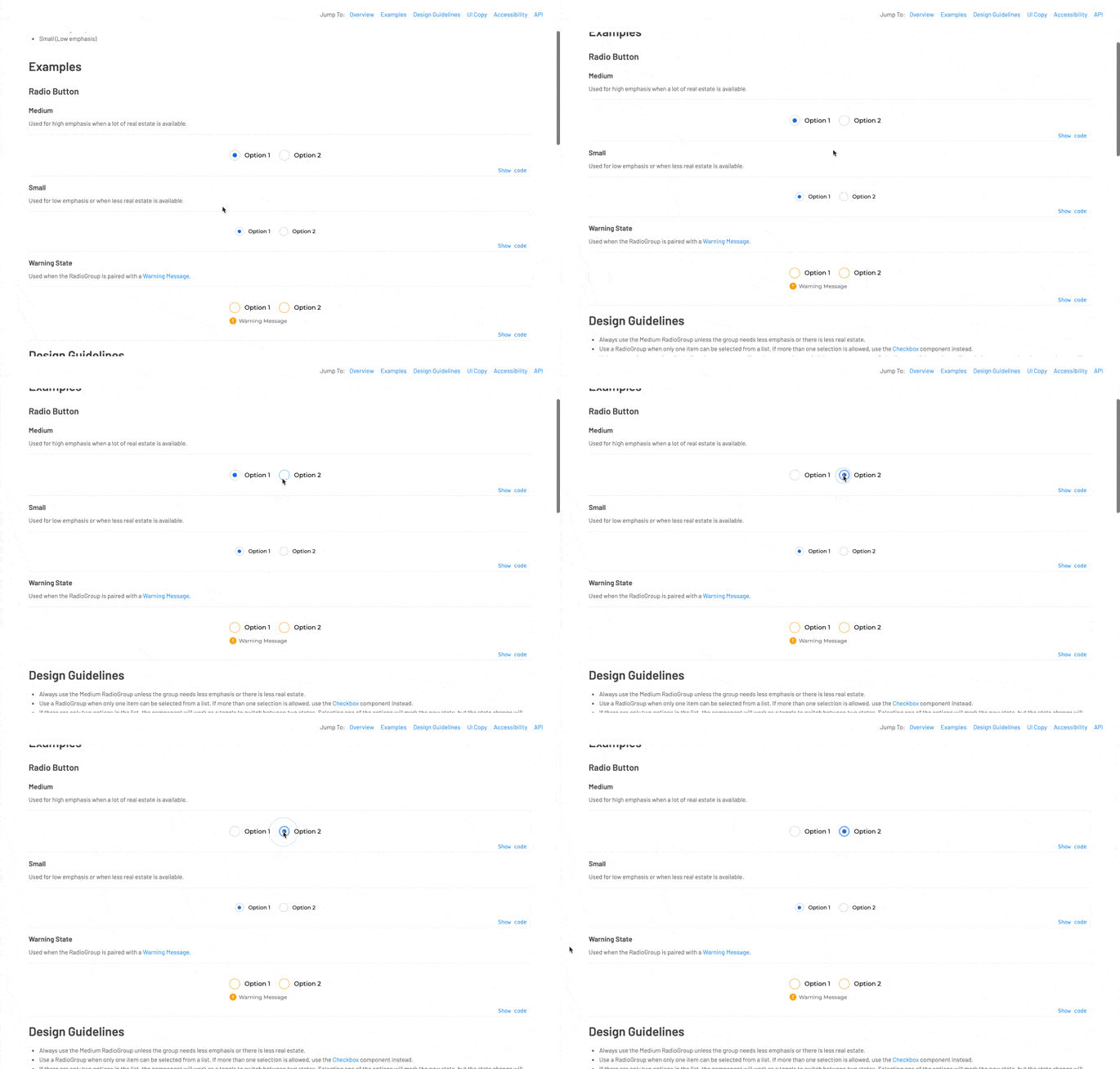
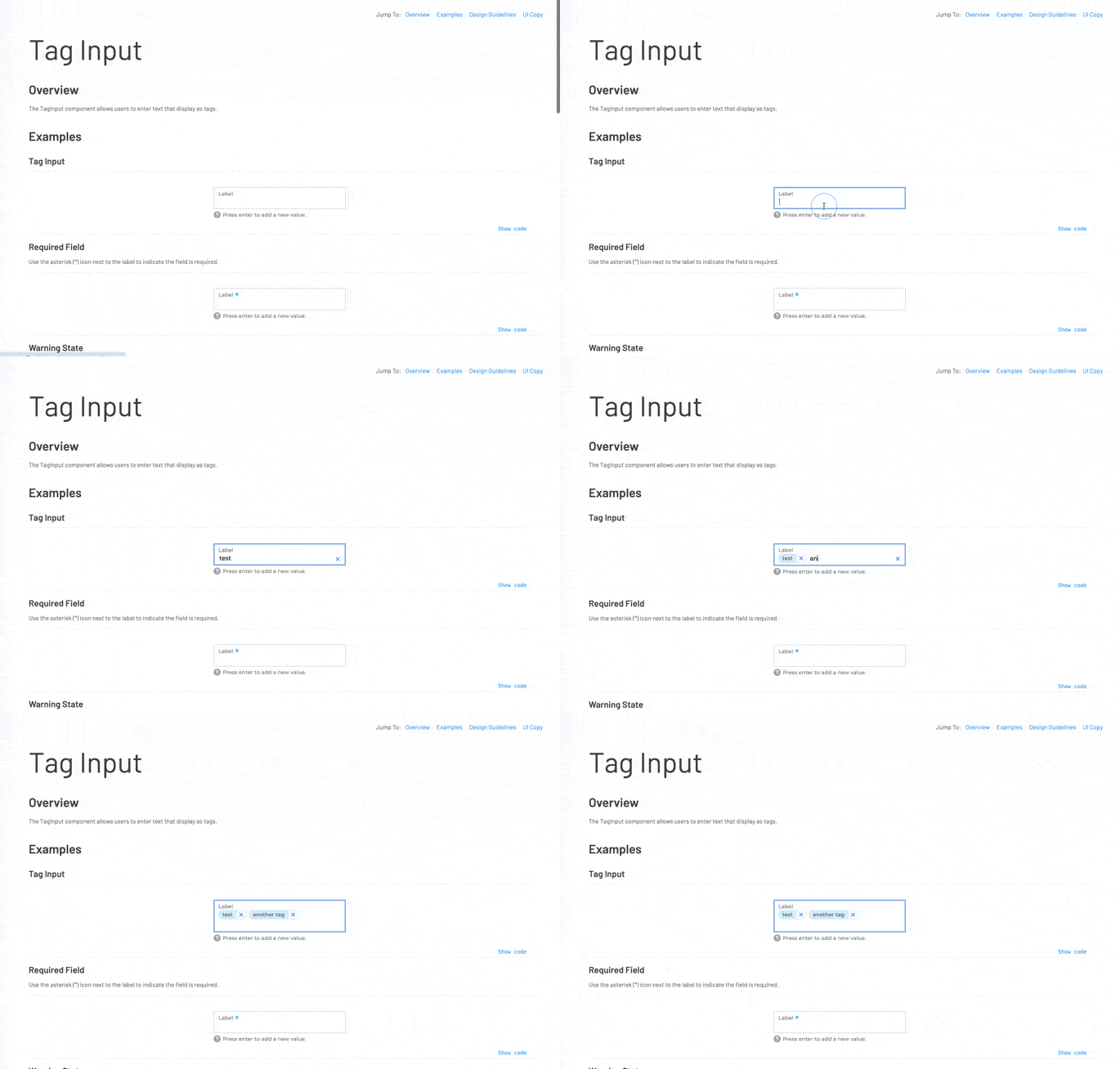
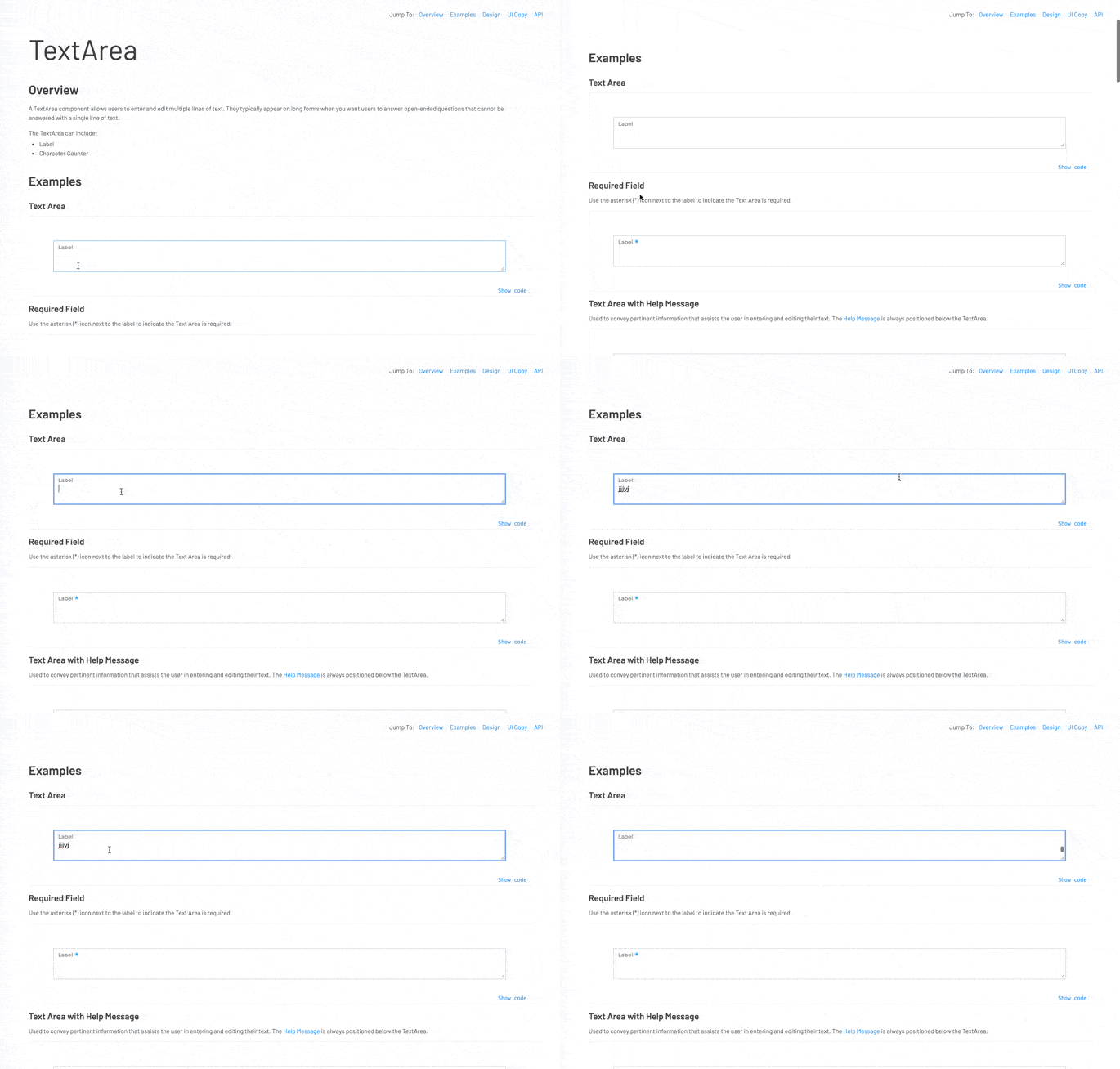
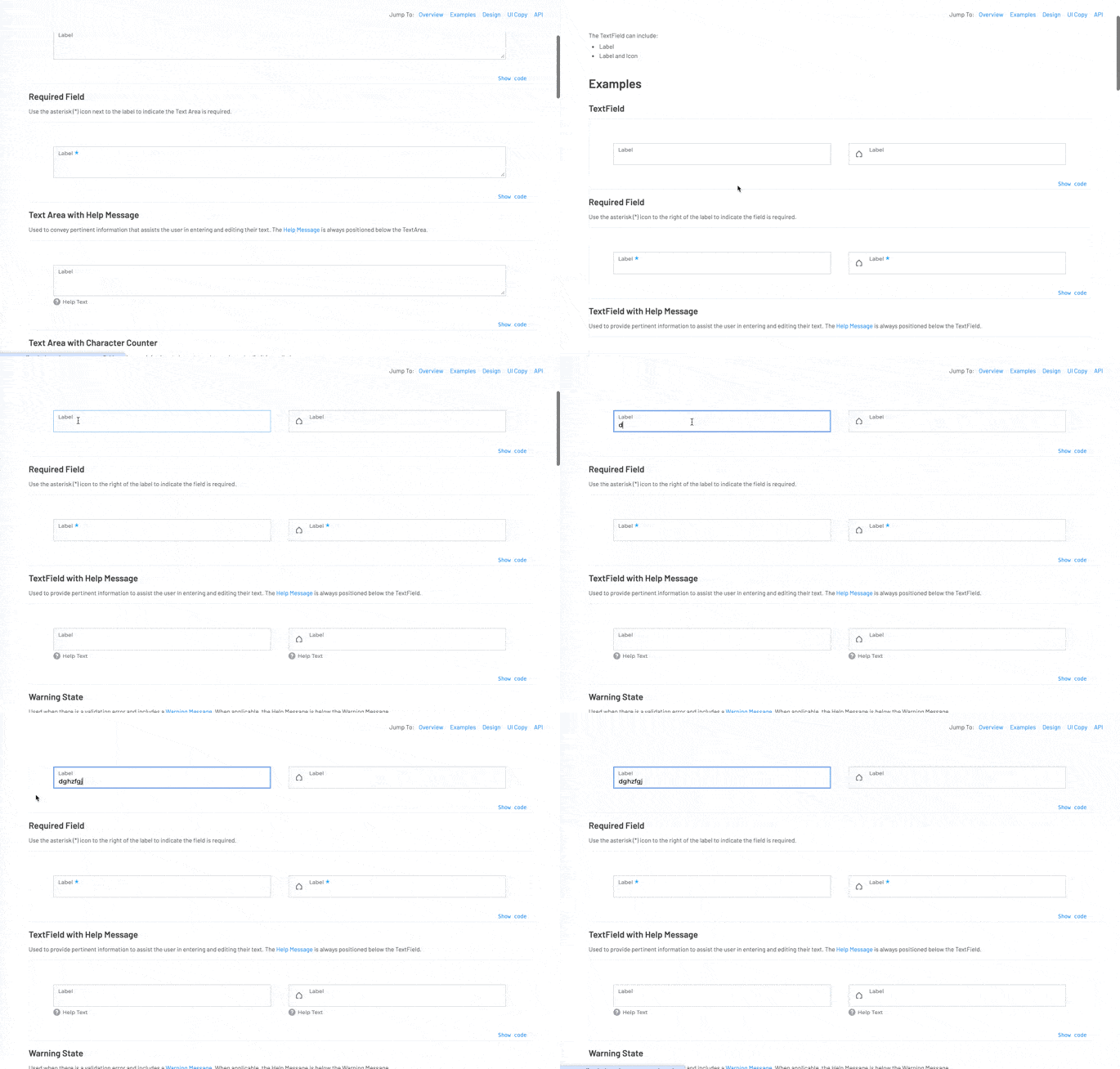
Inputs 15
Attachment Drop Zone*
Checkbox
Combo Box
Number Input*
Password Field
Phone Number Input*
Radio Group
Search Input
Select
Select Date
Select Date Range
Signature*
Tag Input
Text Area
Text Field
* Designed and documented; not yet implemented.
Actions
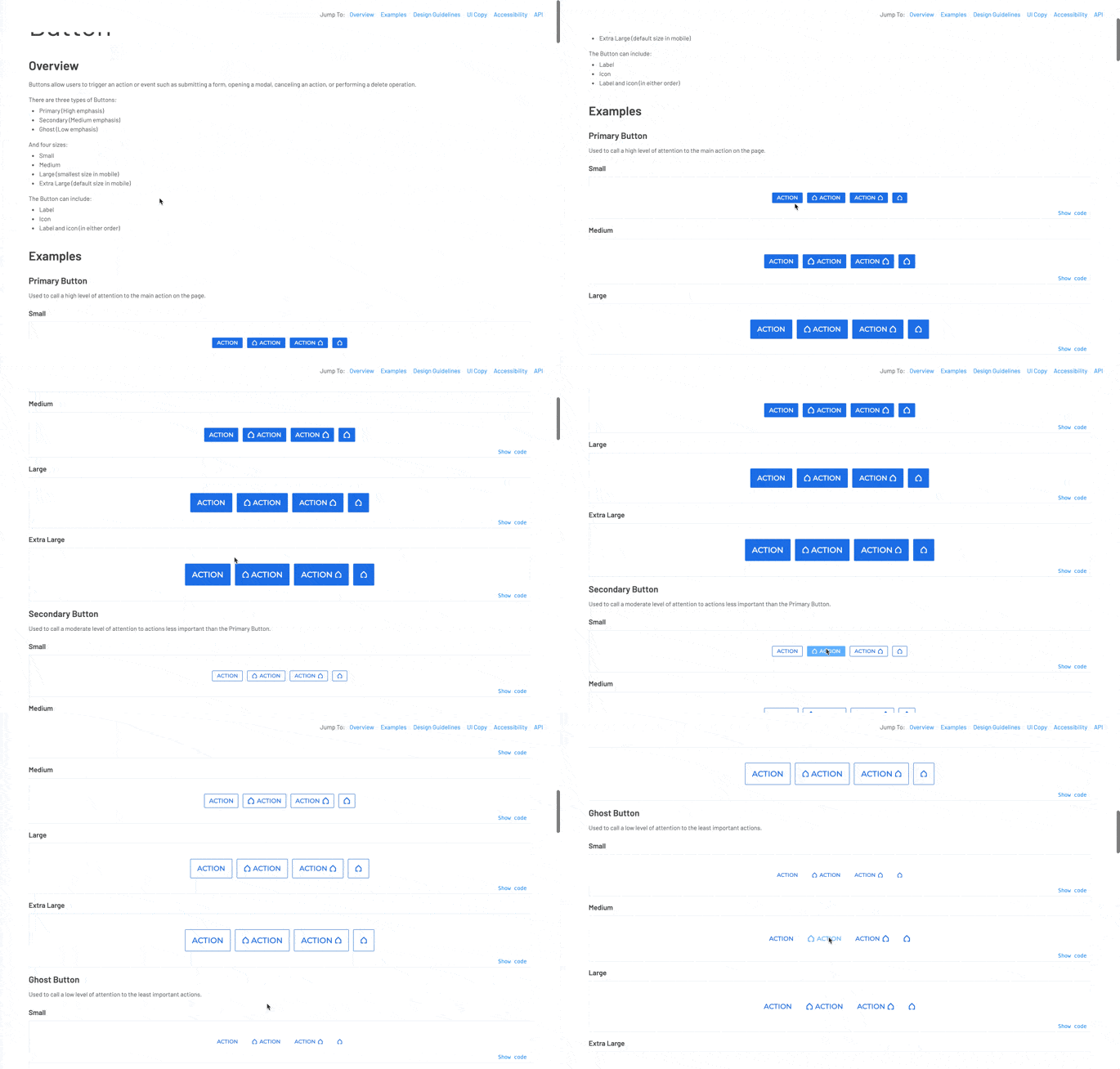
Button carried a lot of variation from the start: primary, secondary, and ghost, all in shades of the interaction blue, across multiple sizes, with freedom to place an icon alongside the label or use one alone, plus hover treatments that could borrow red or green to signal danger or success intent, though danger got used far more than success. I added a loading state later to show progress. Sizing came in two passes: the system was originally built for desktop, so when mobile-driven work picked up, another designer flagged that the existing sizes fell short of recommended touch targets, and I added the larger sizes that fixed it.
Inputs
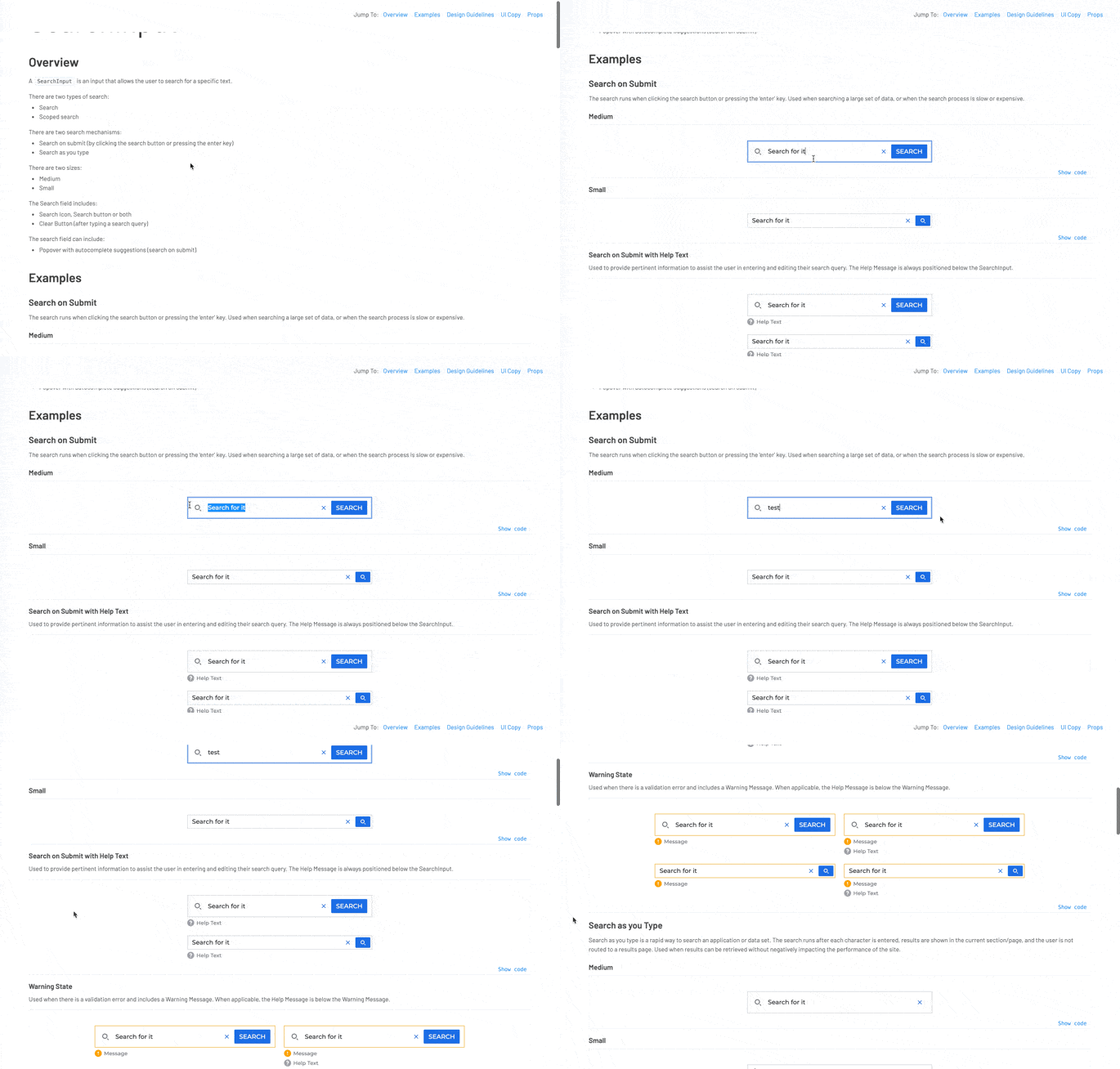
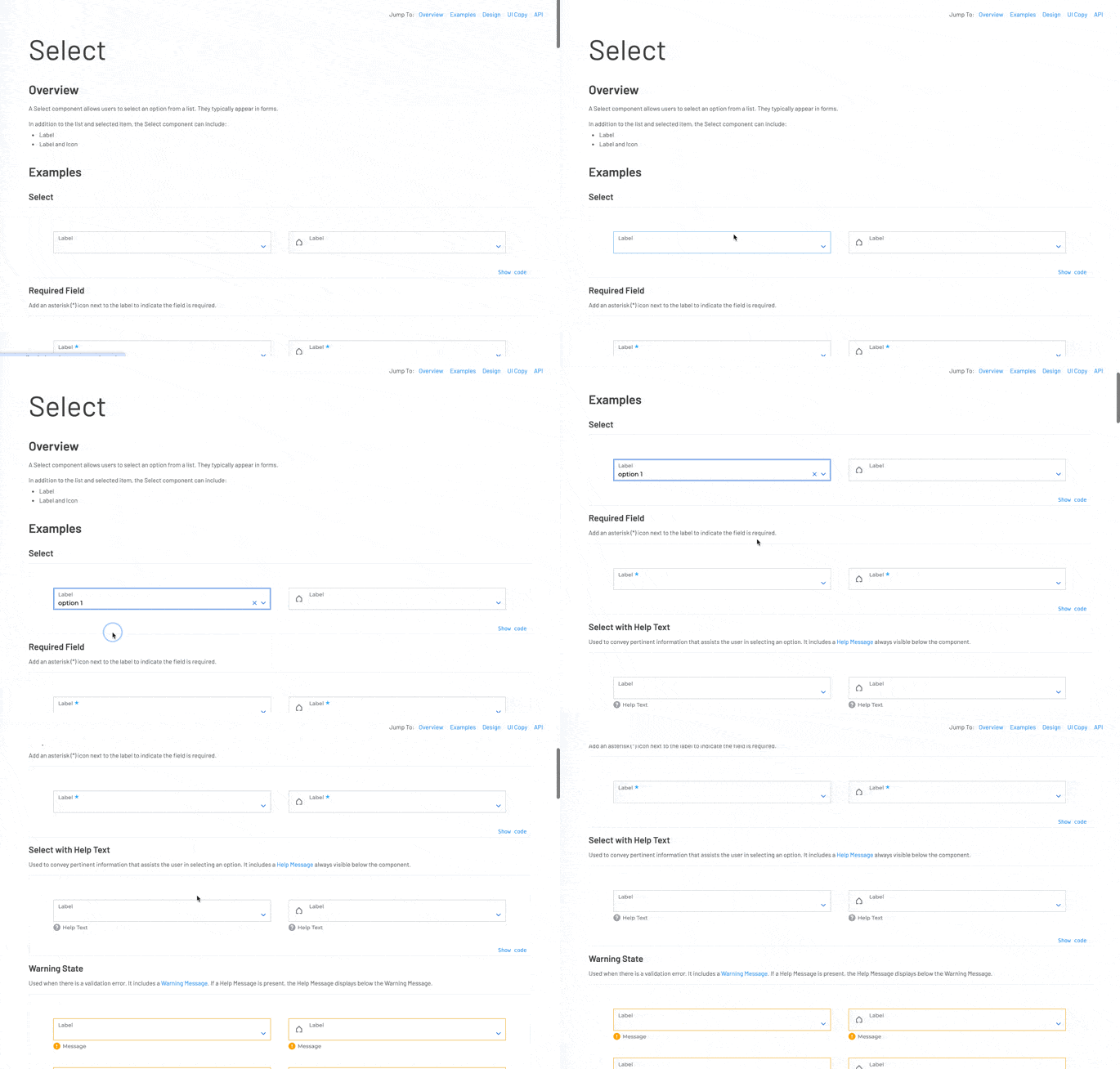
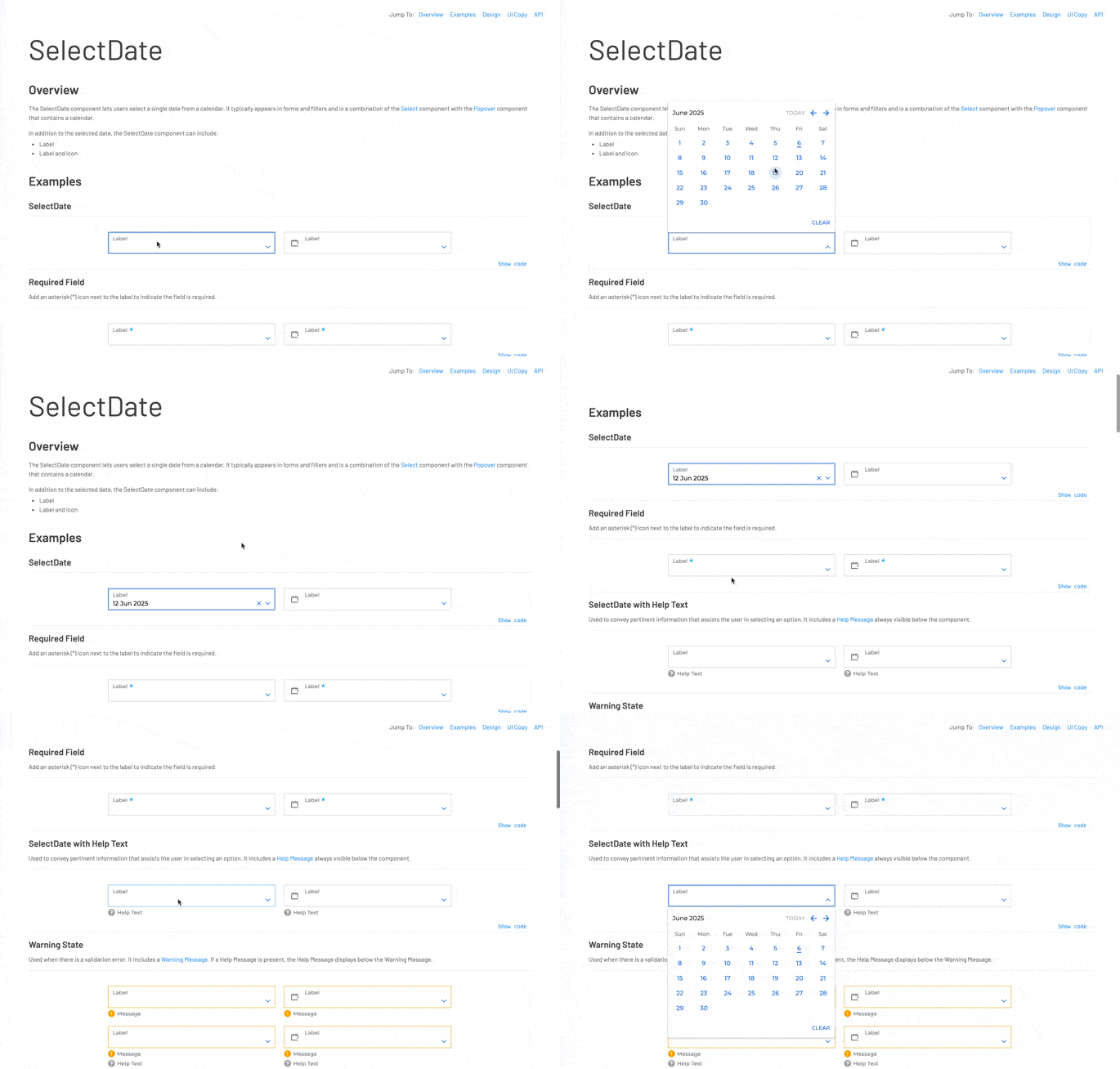
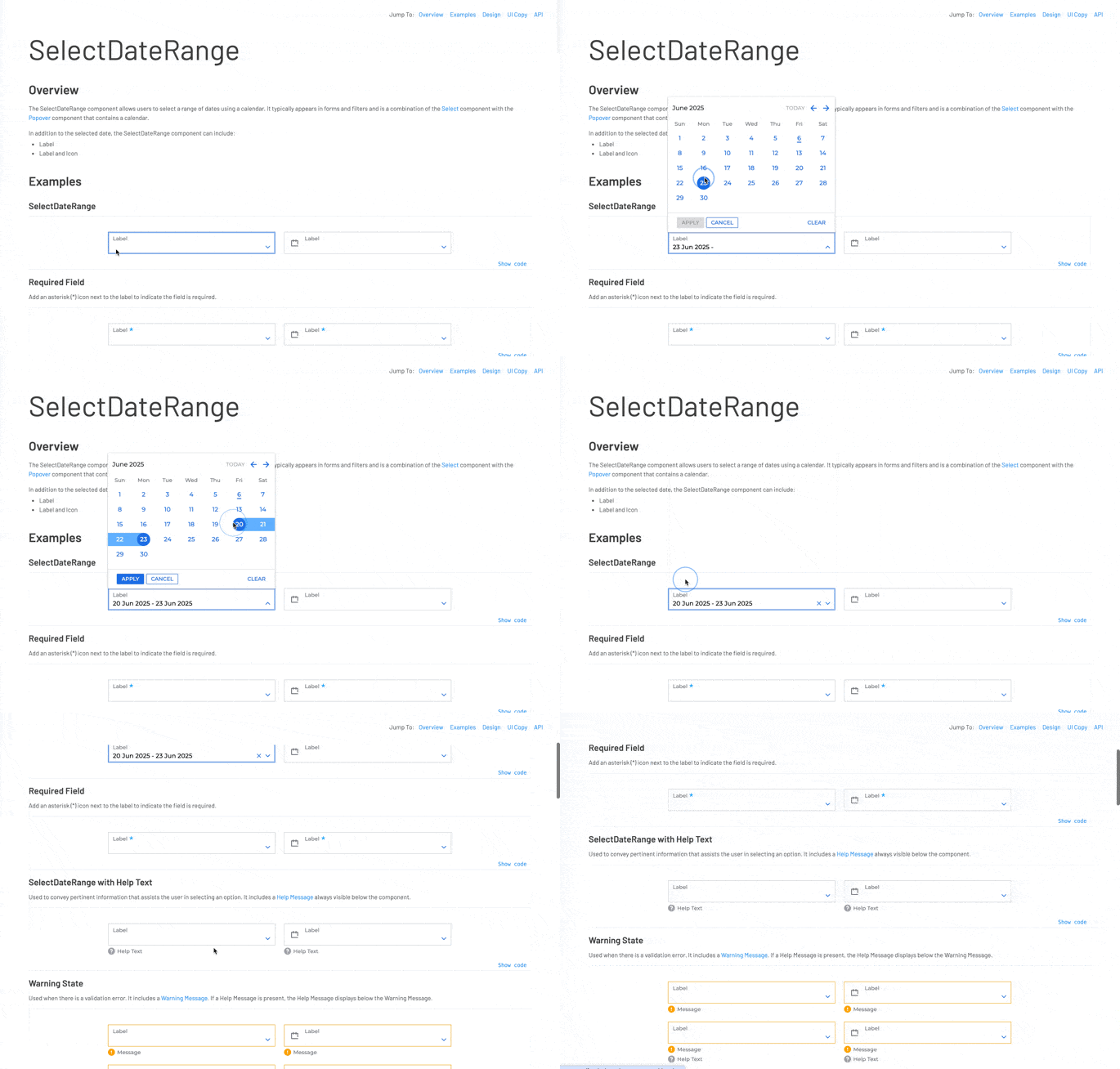
With 15 components, this was the largest category and reflected the operational nature of the platform. Beyond standard inputs, the system included enterprise-specific ones: a Signature component for digital sign-off workflows, a Phone Number Input handling international formats, and an Attachment Drop Zone for document-heavy service events. Four of these were fully designed and documented but not yet implemented by the time I left.
Navigation
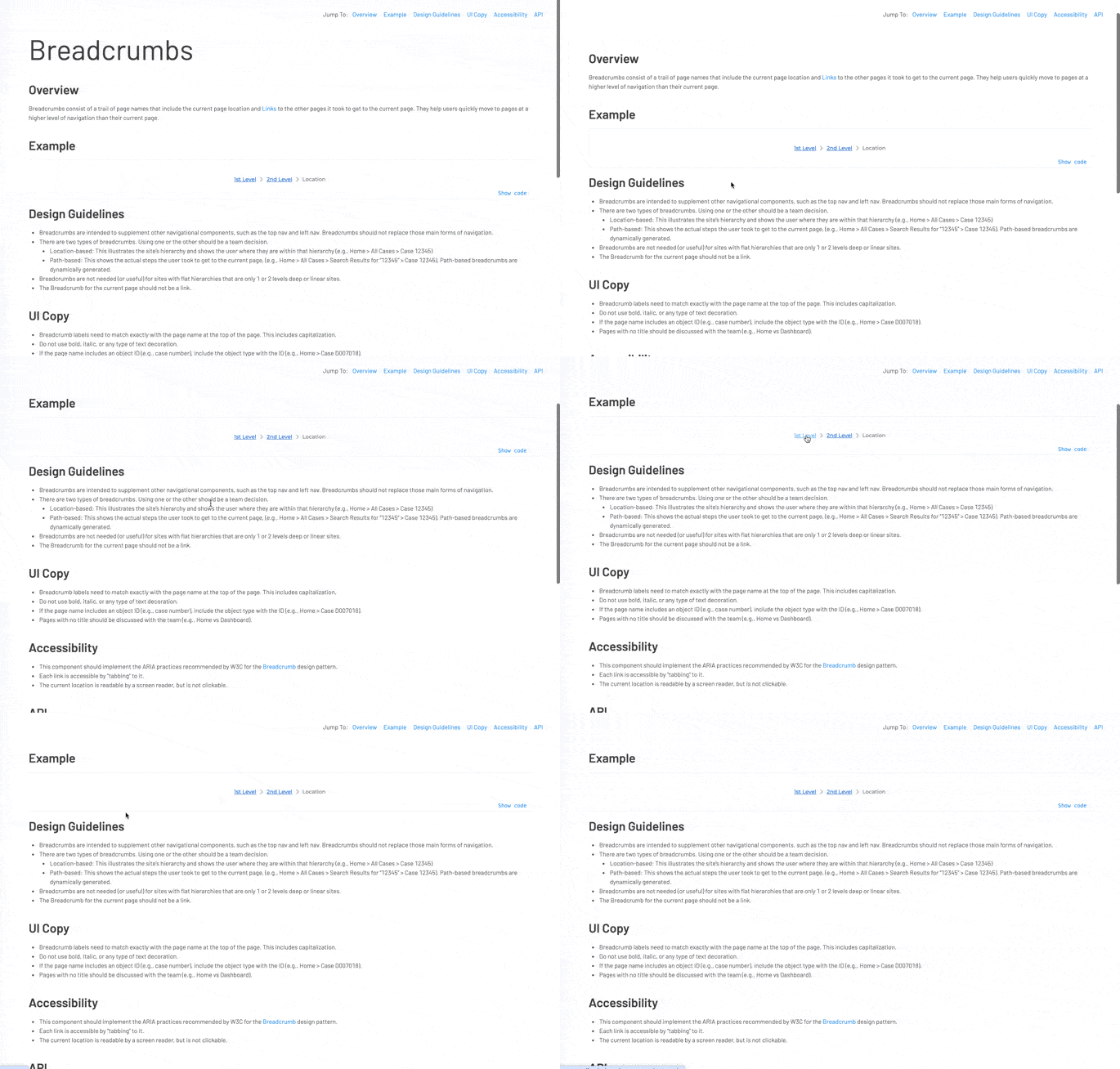
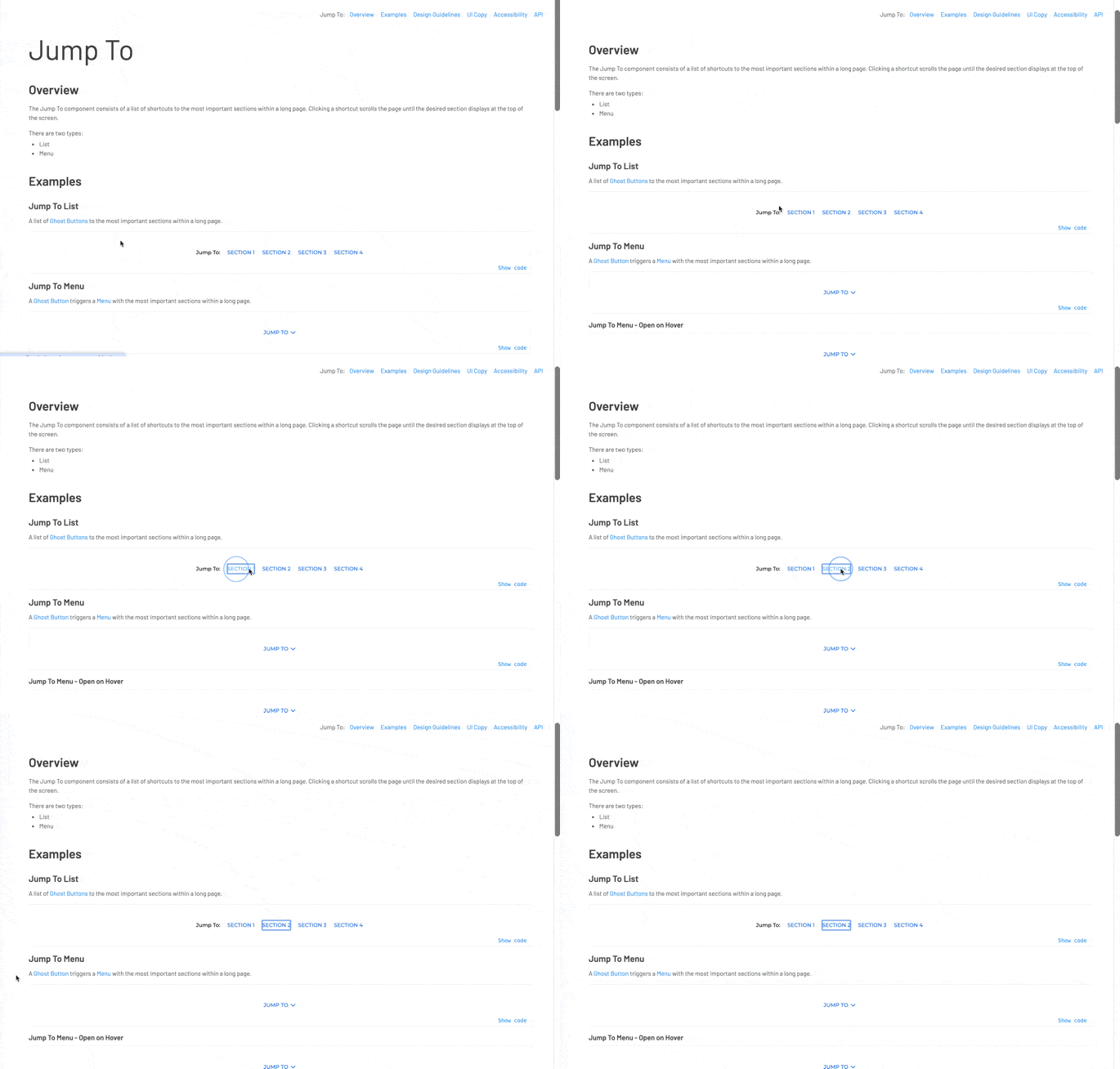
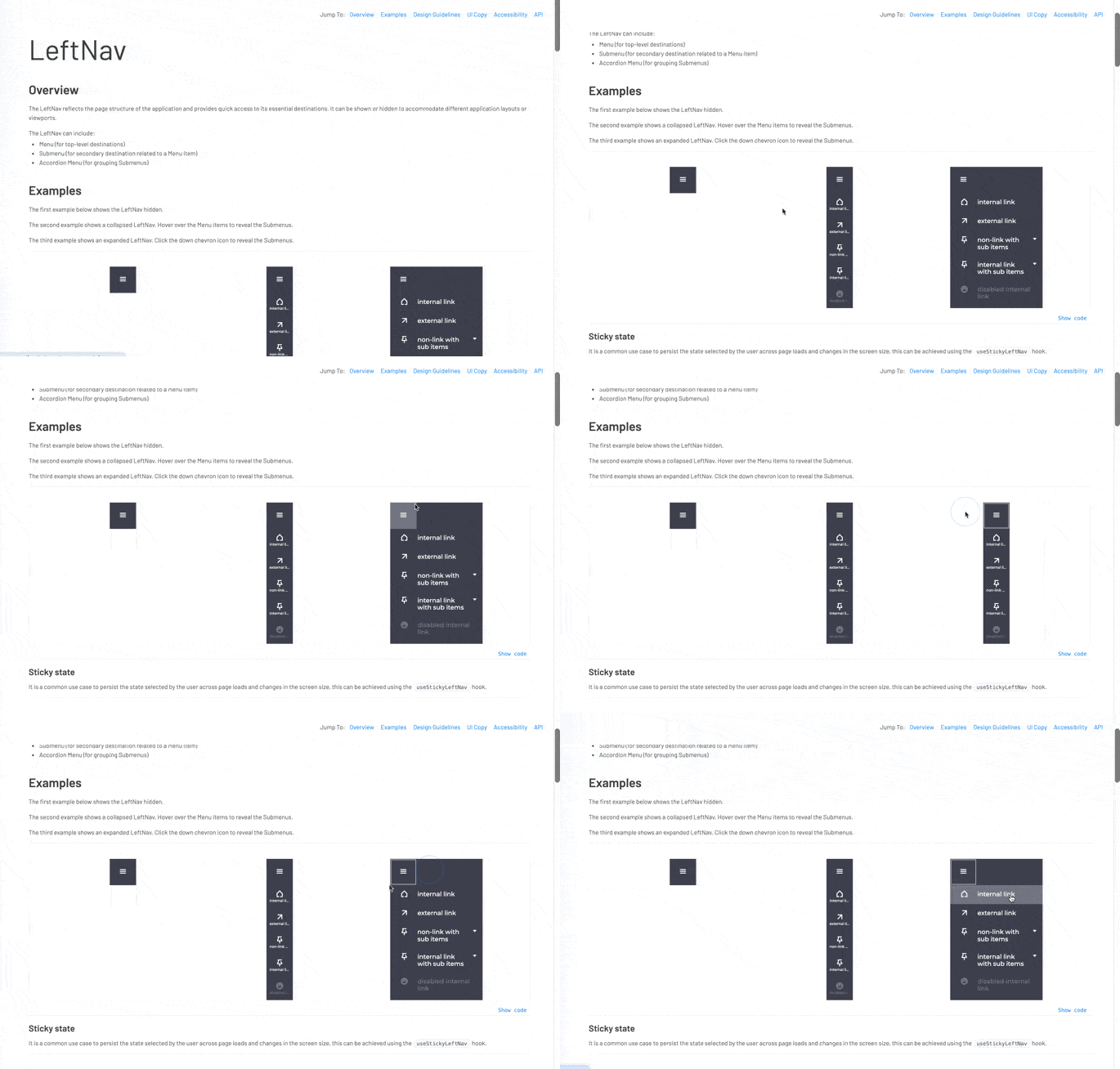
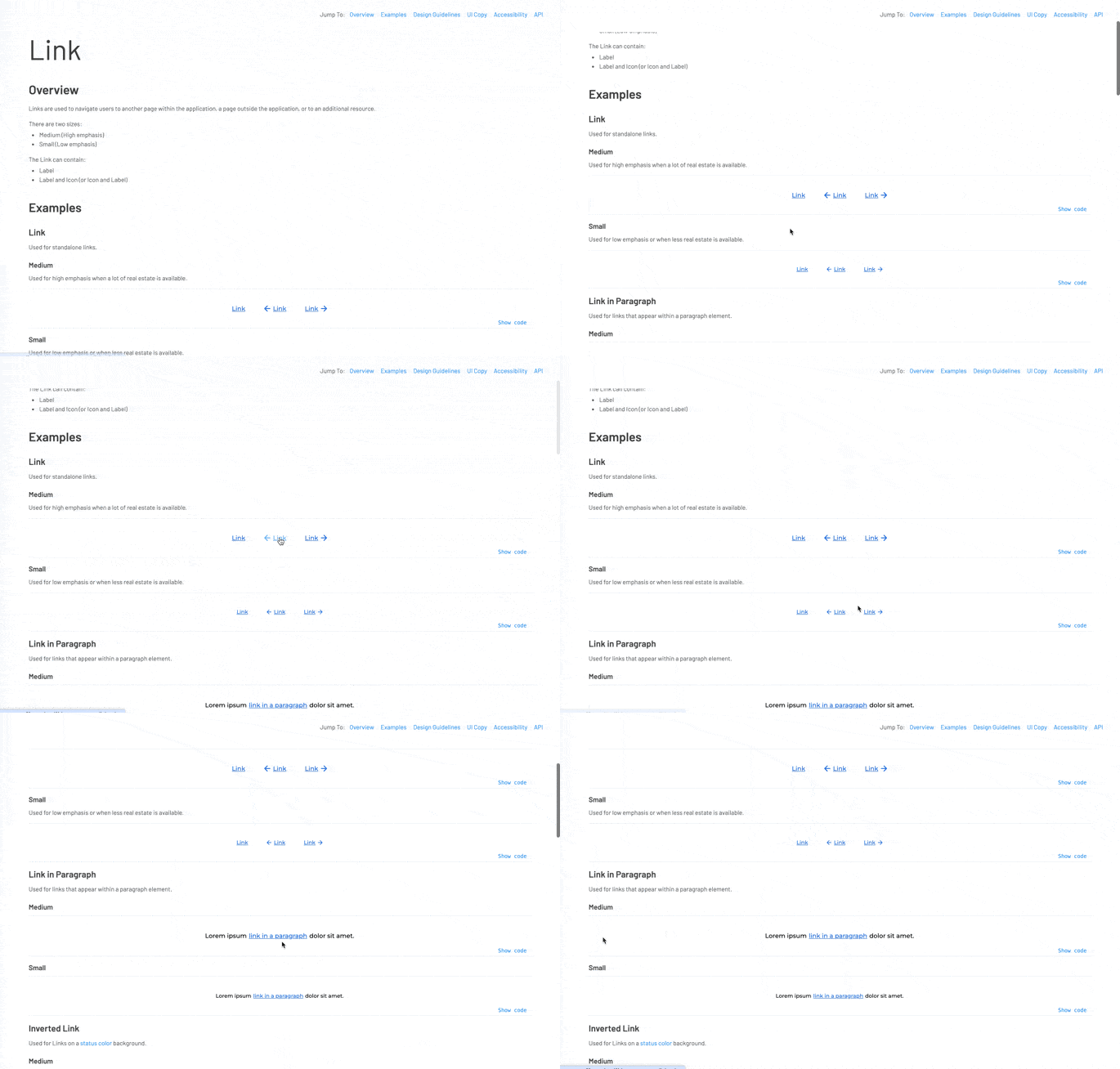
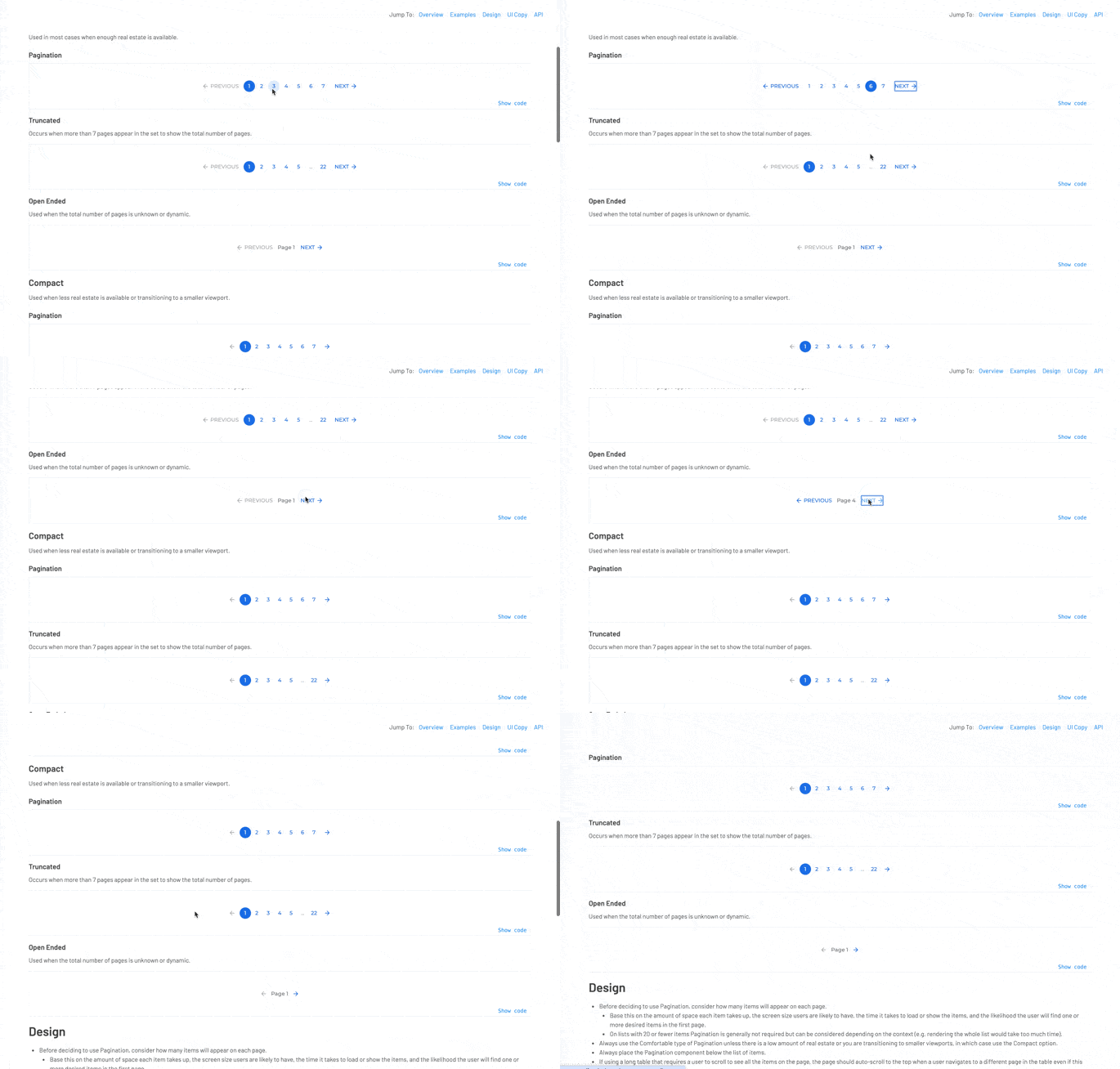
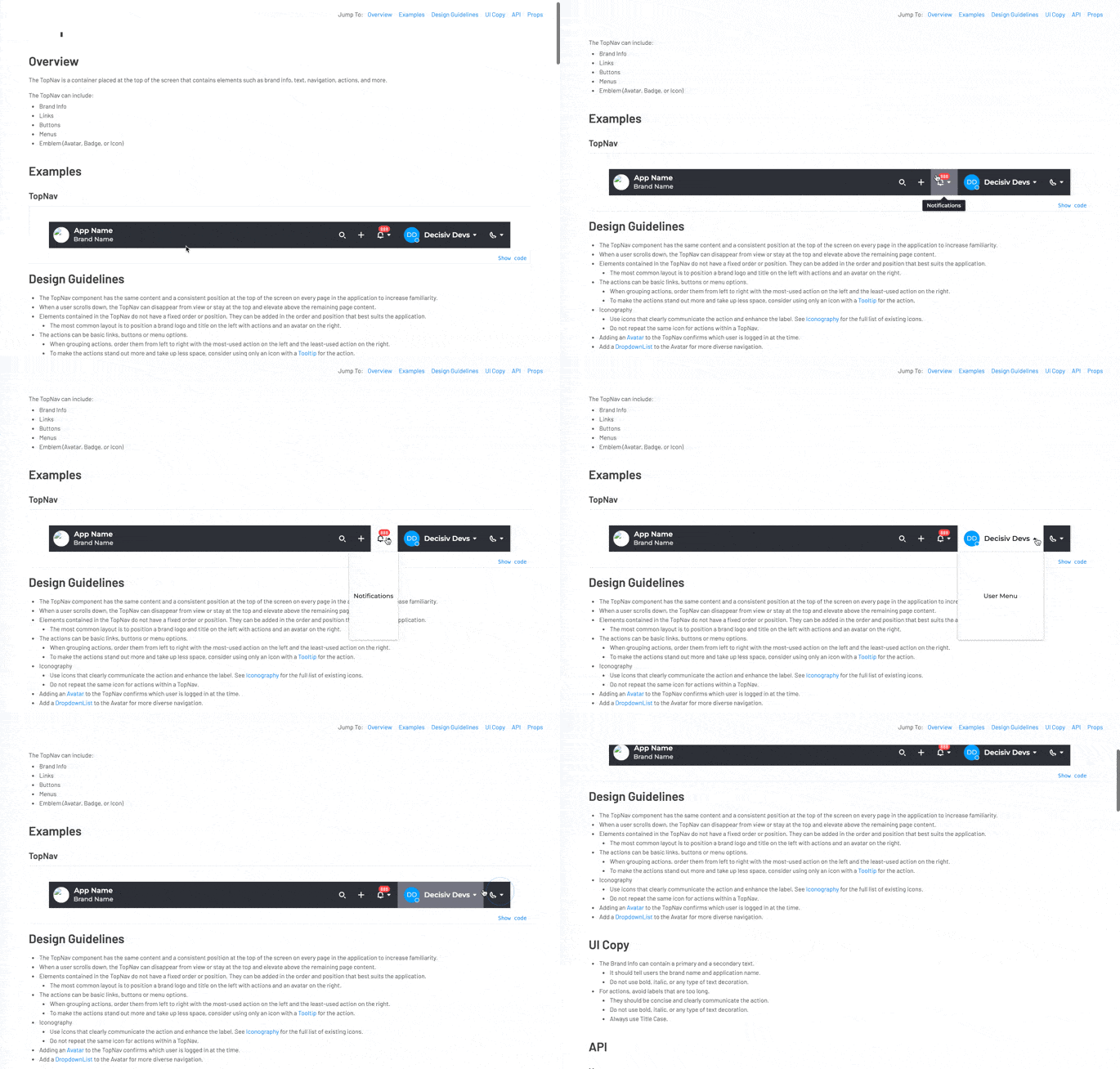
Navigation spanned structural wayfinding (Left Nav, Top Nav, Breadcrumb, Pagination, Link) and one domain-specific case. I designed the left nav to be the structural backbone of the platform, accounting for deeply nested hierarchies and role-based access that hid or showed sections depending on user type. It shipped and was adopted in new applications, though legacy apps never migrated to it. Jump To was one of the more domain-specific components. It let users skip directly to sections within long, scroll-heavy service event pages, a pattern that wouldn’t exist in most products but was essential here.
Feedback
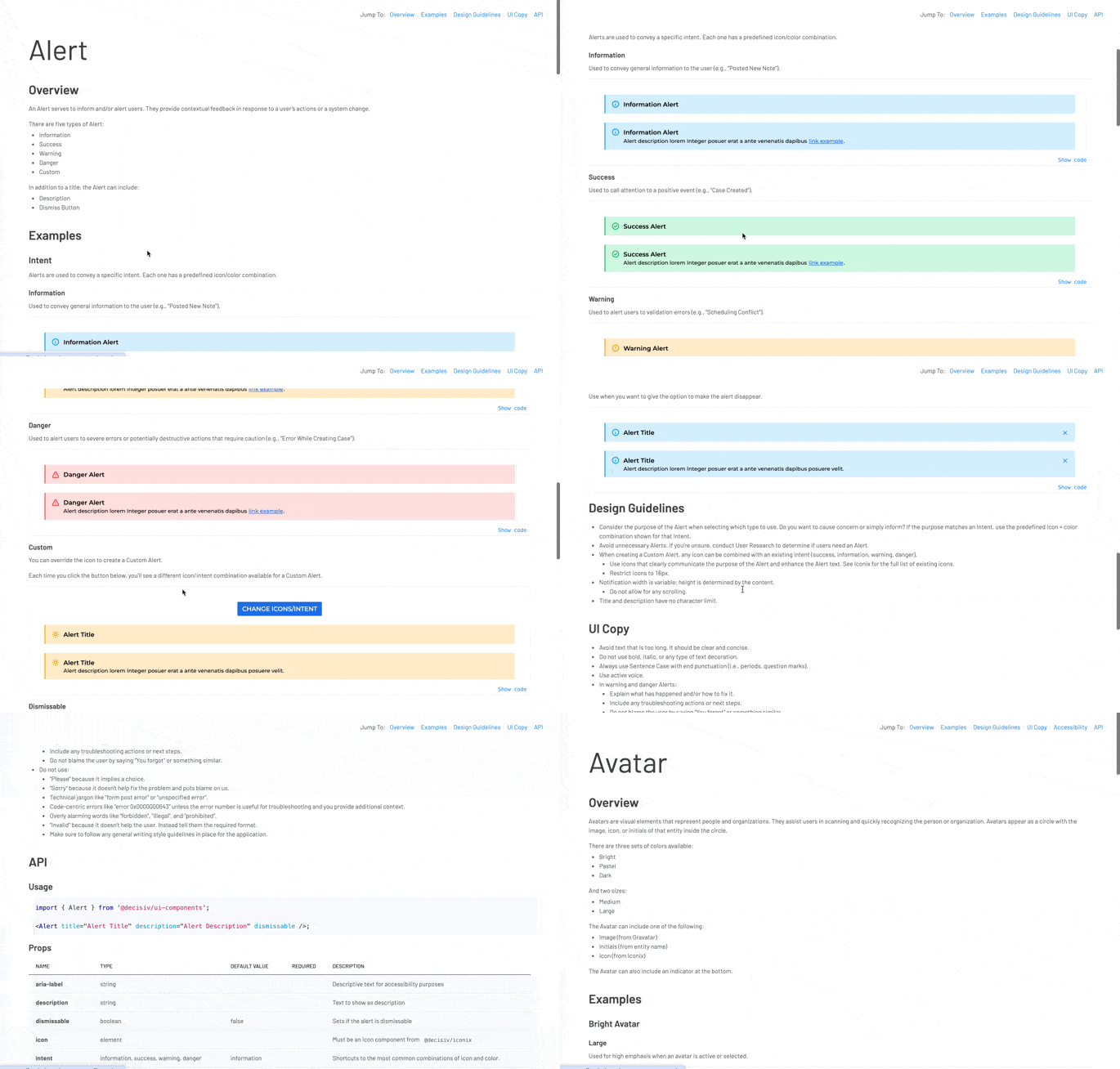
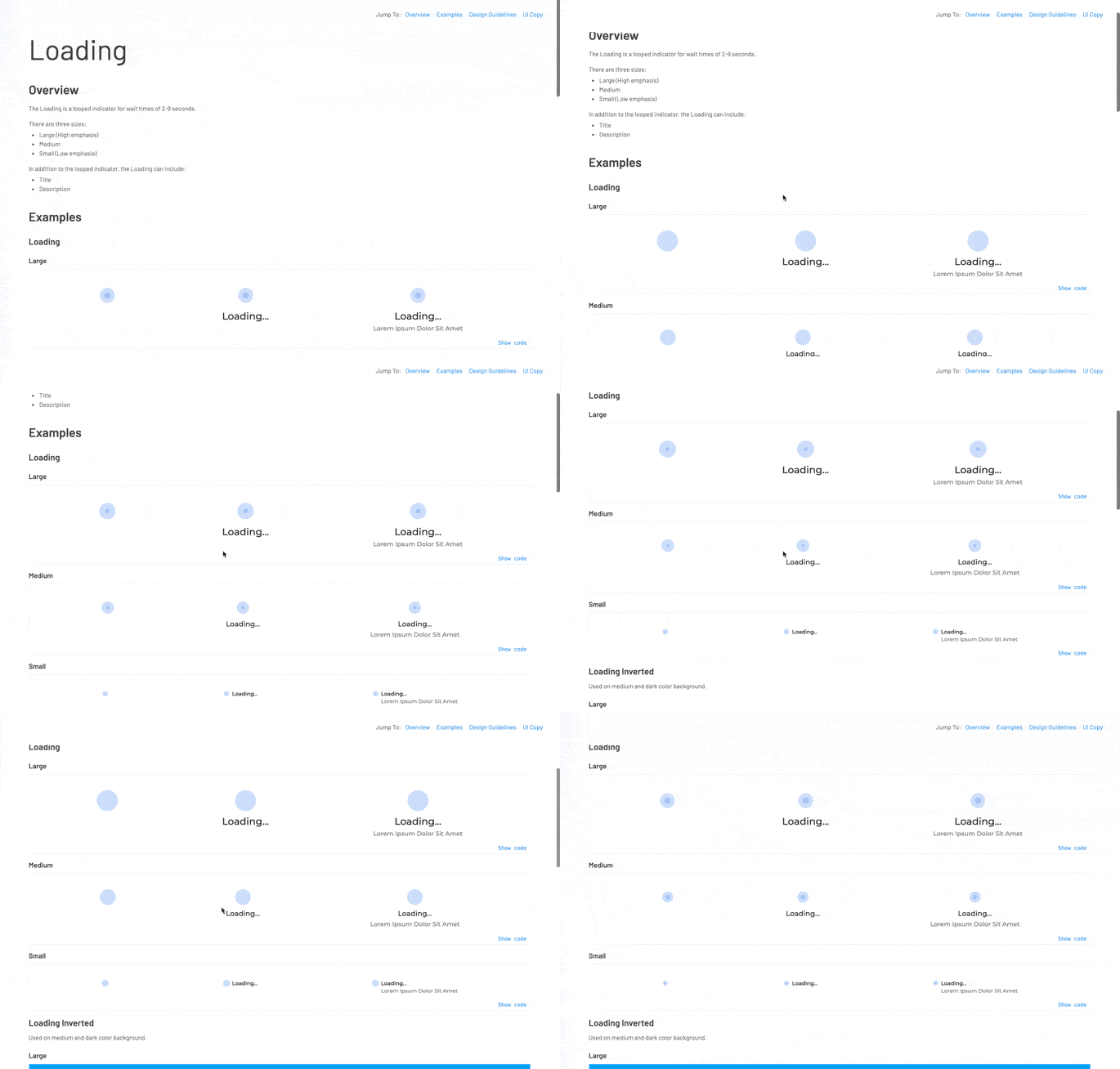
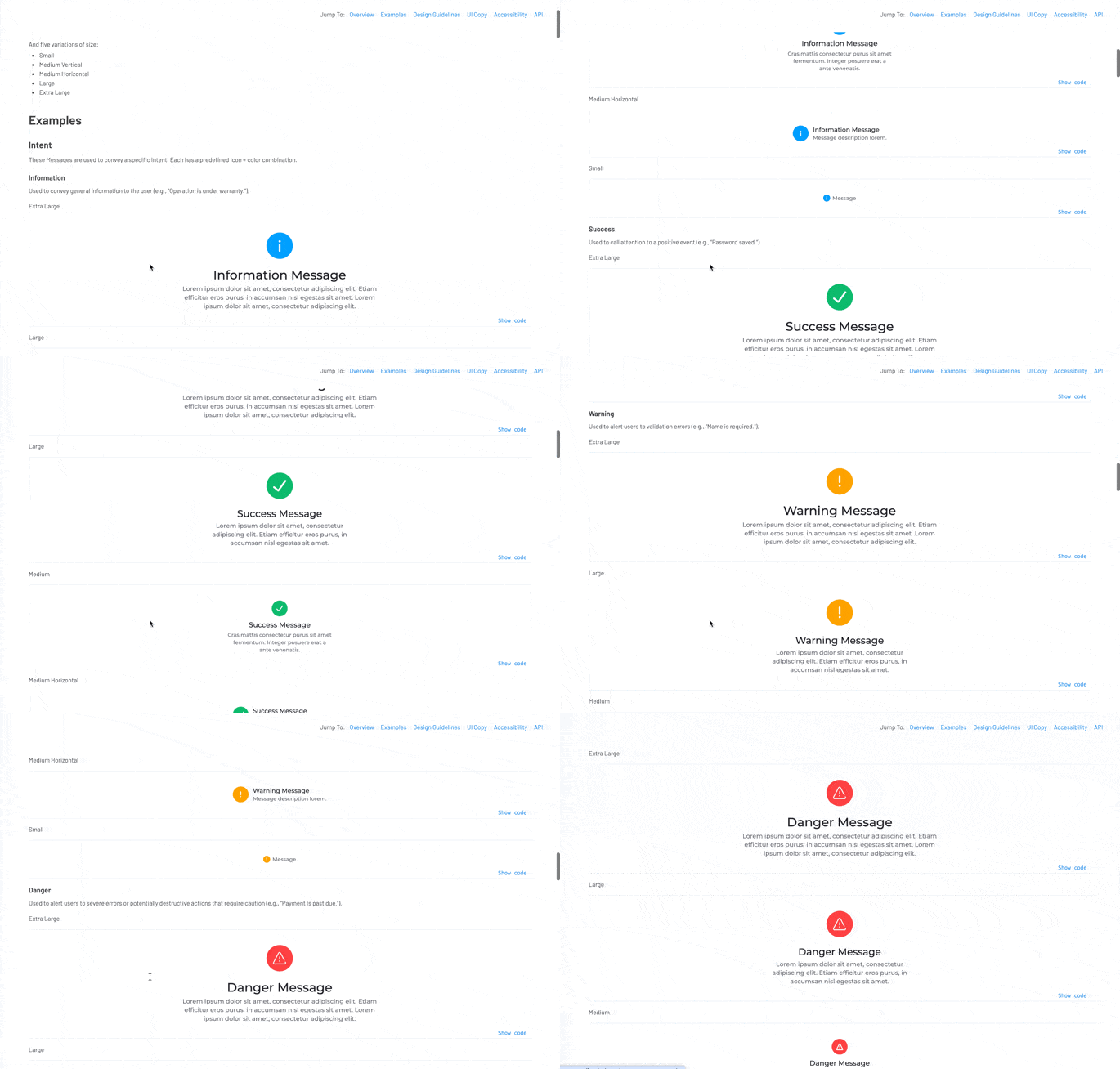
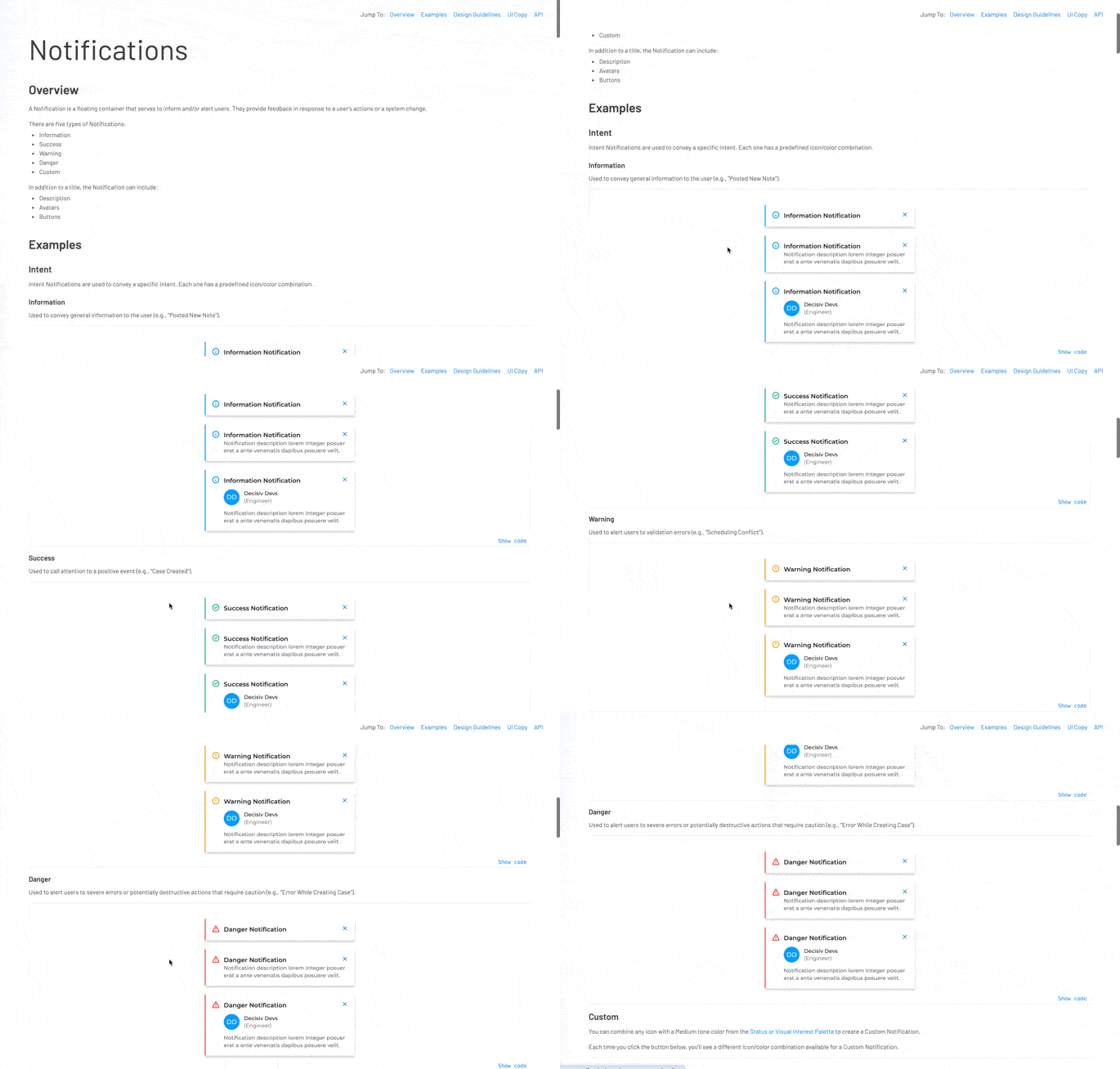
Alert, Notification, and Message shared the same underlying logic: four intents (informational, success, warning, danger), each with a dedicated color and icon. Once someone learned the system, they could predict how any of the three would look and behave for a given intent. Loading was the exception, since it isn’t tied to an intent.
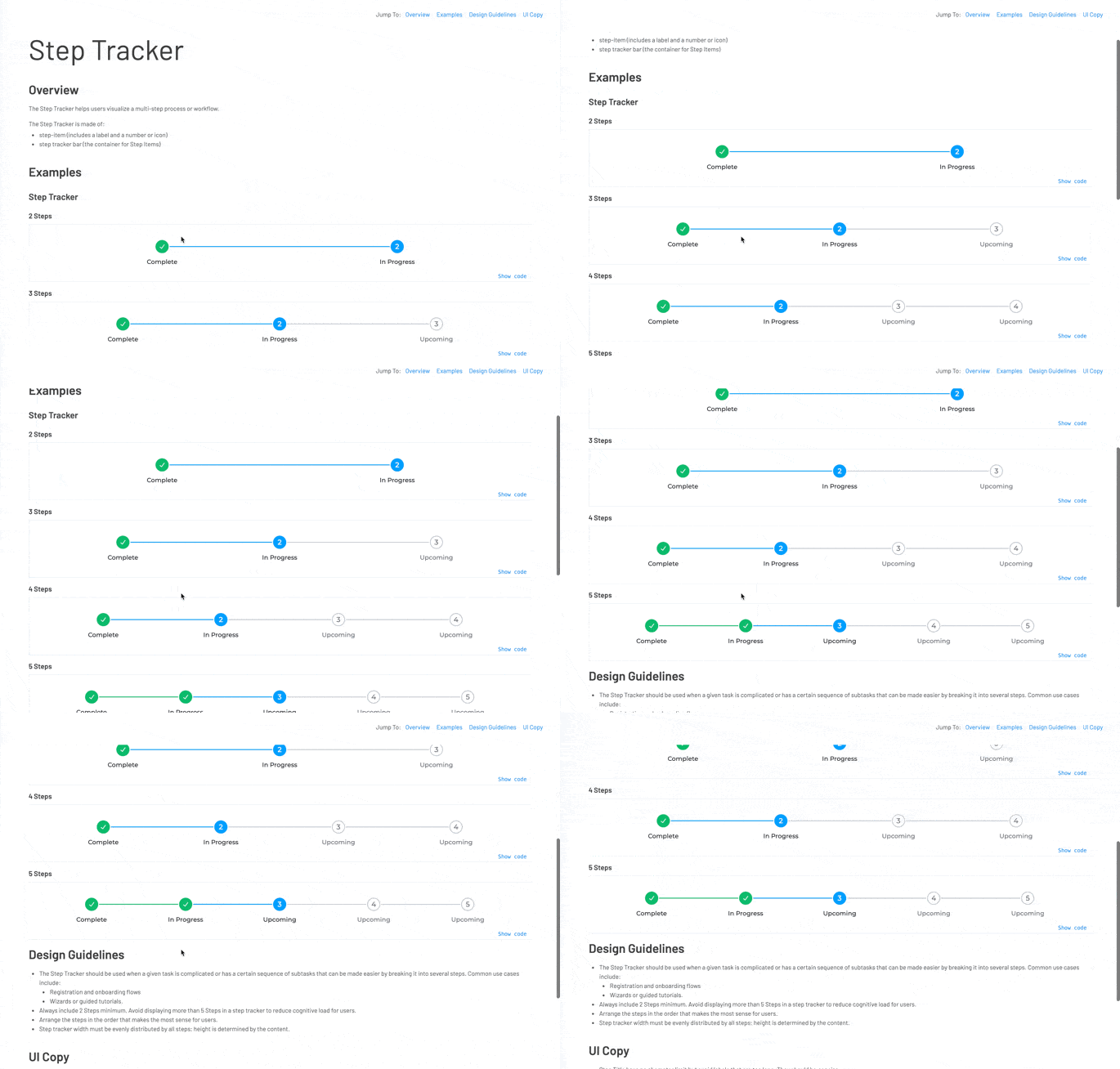
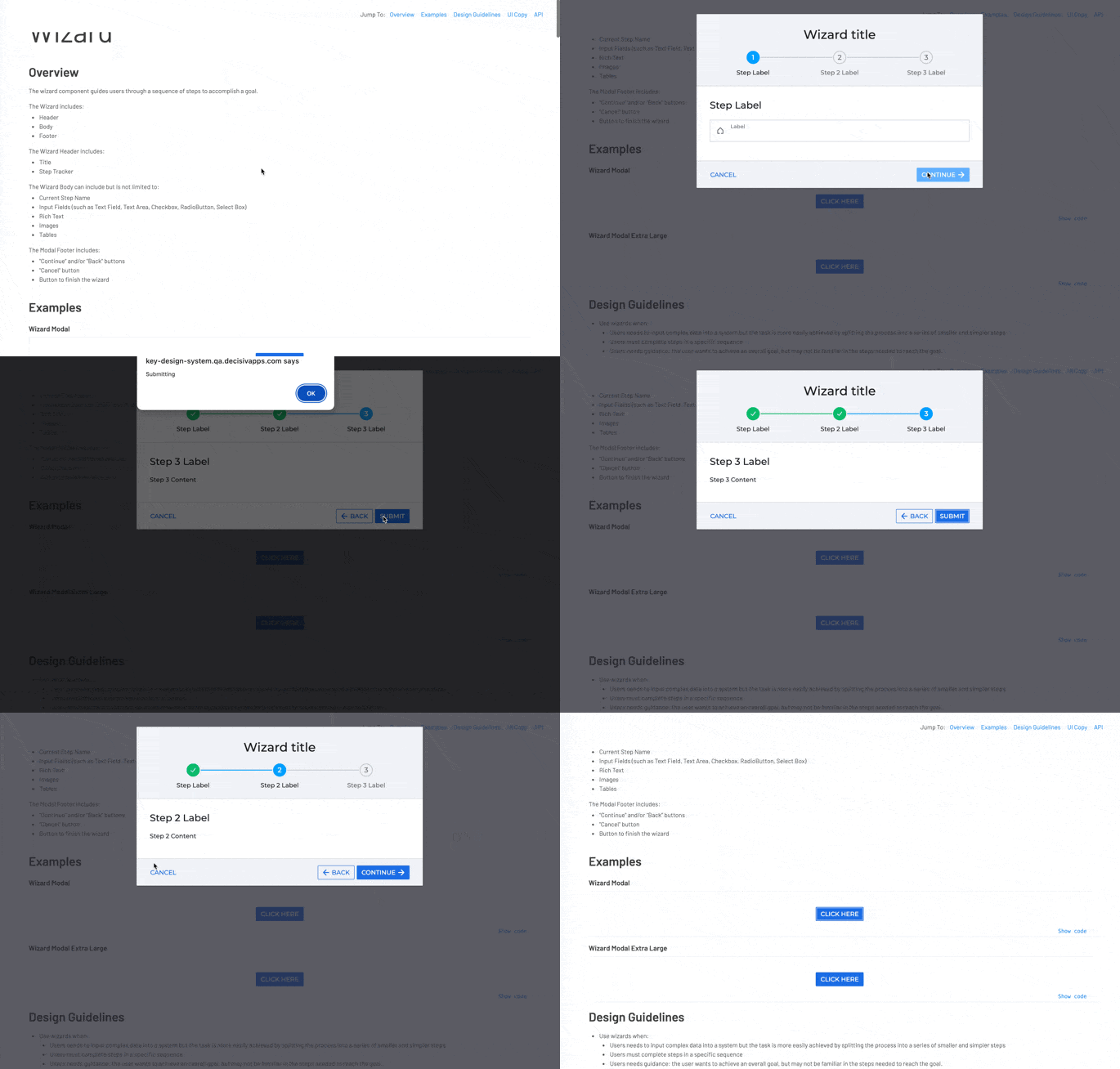
Step Tracker was a building block for Wizard, the multi-step modal component under Overlays, giving it a consistent way to show progress across steps.
Overlays
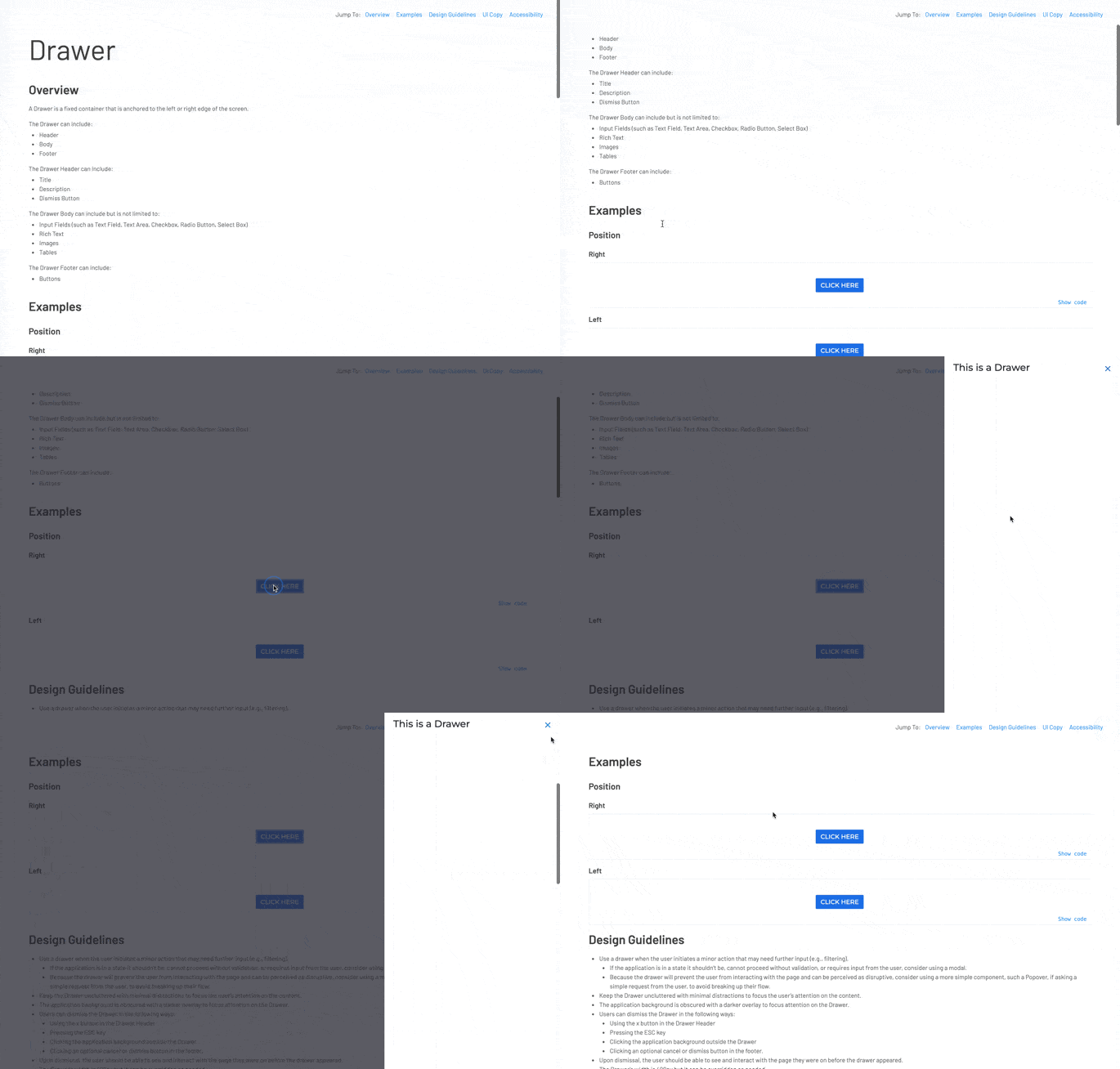
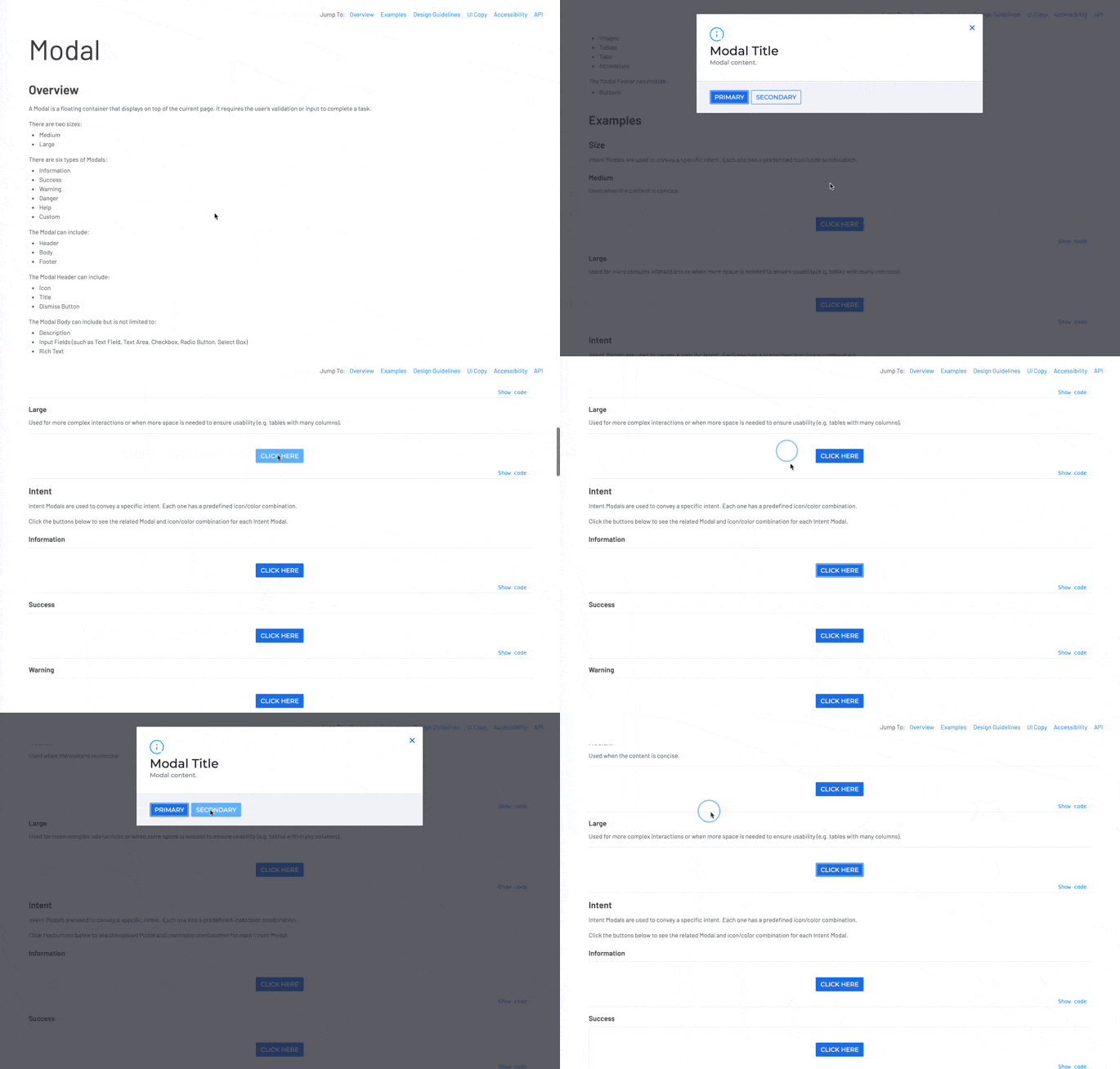
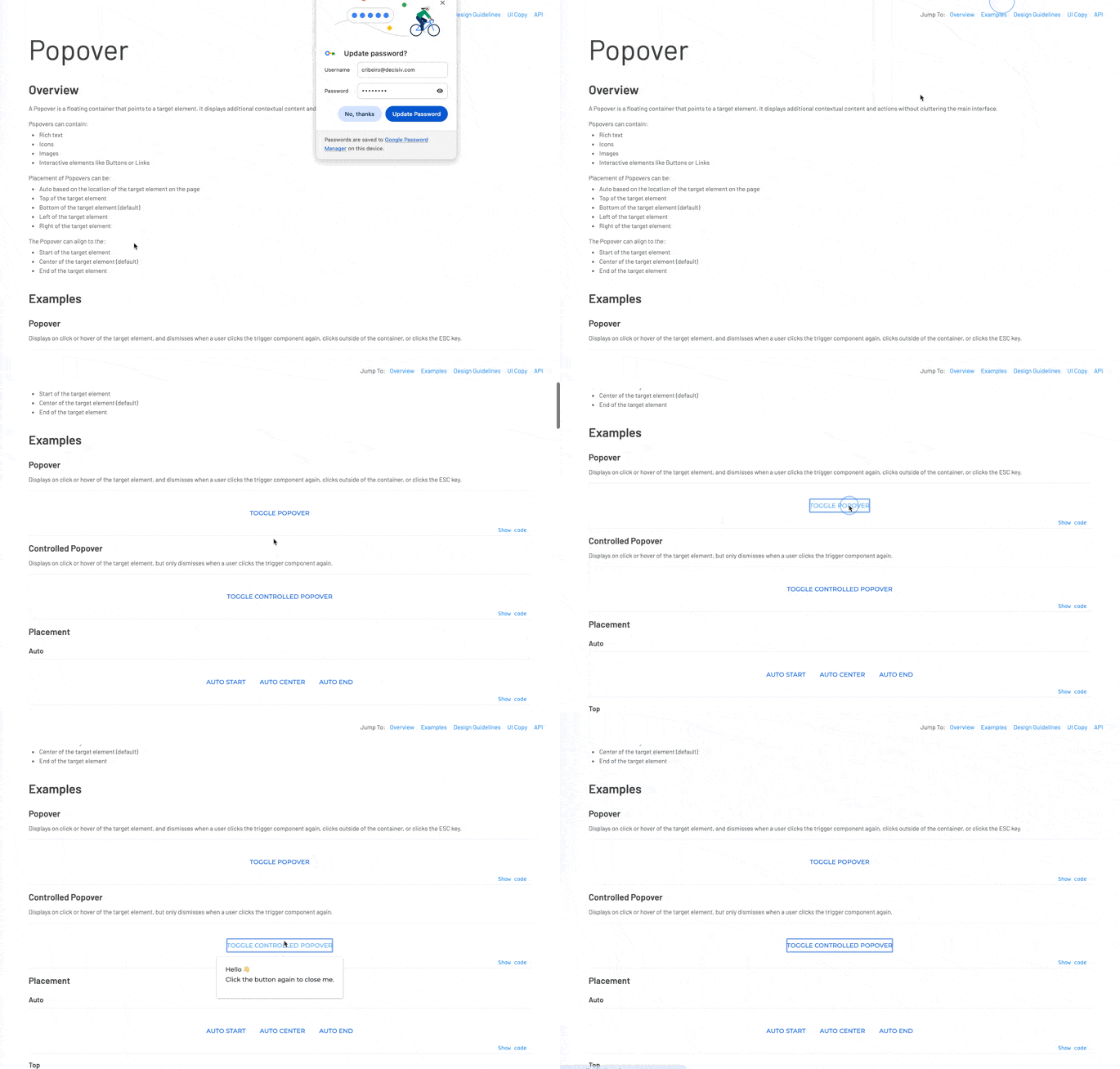
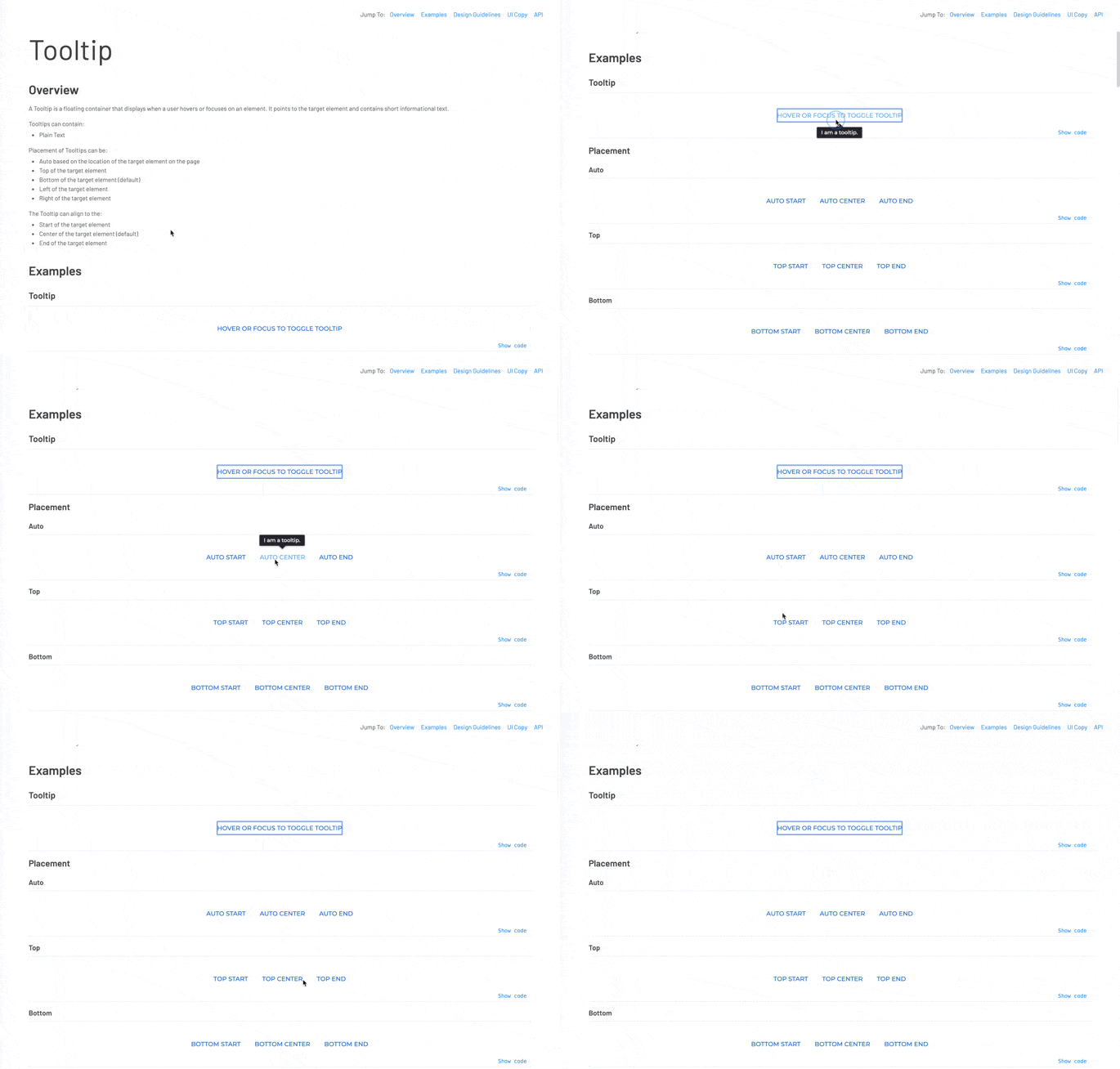
Modals, drawers, popovers, and tooltips each served a distinct role. Modals interrupted flow for decisions that needed full attention, and drawers surfaced contextual detail without pulling people off the page. Popovers handled anything lighter, inline. Getting those boundaries right cut down on misuse across product teams.
Wizard was the odd one out: a modal shell with a variable body, pairing with Step Tracker to walk through a form across steps.
Data Display
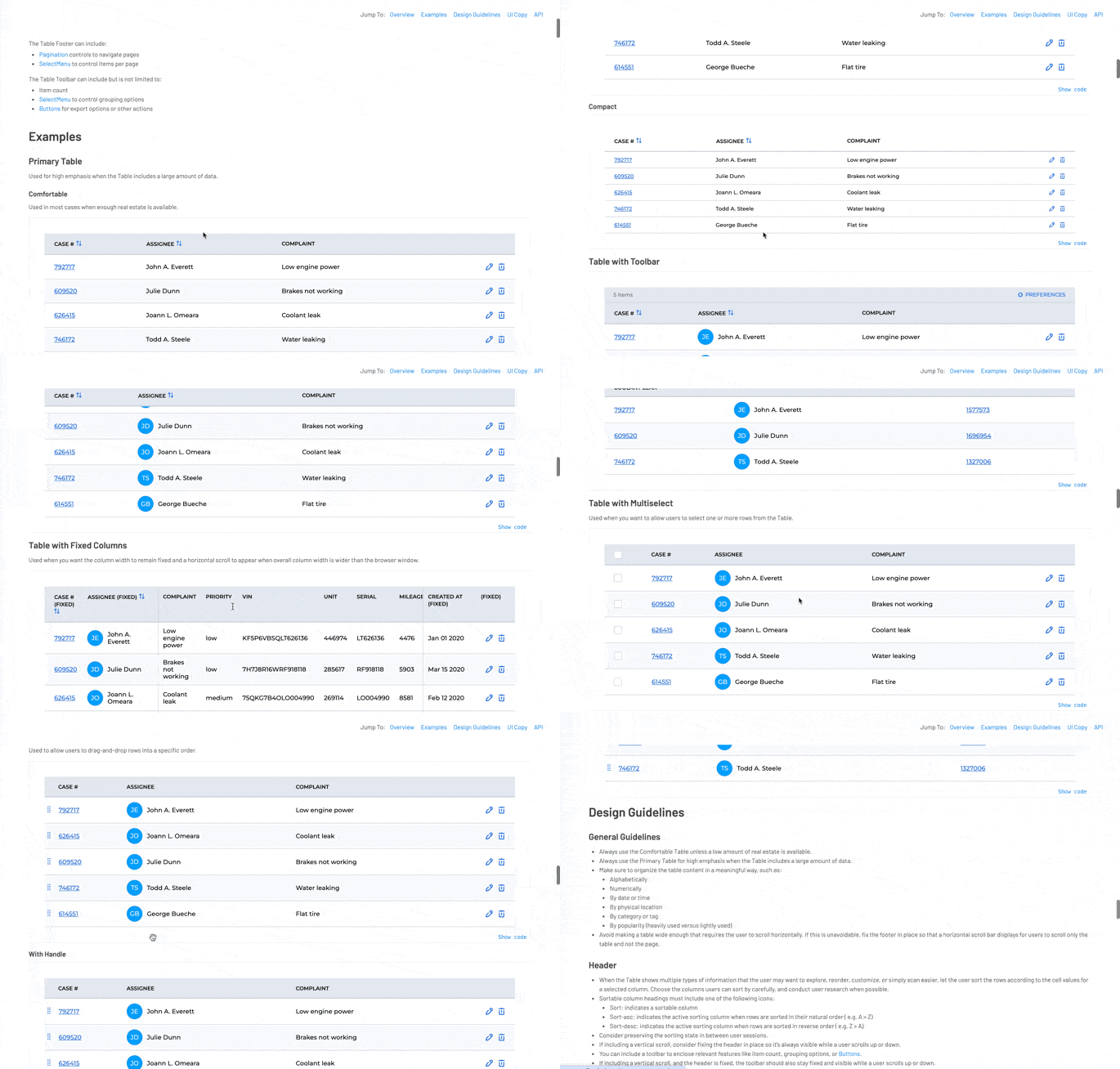
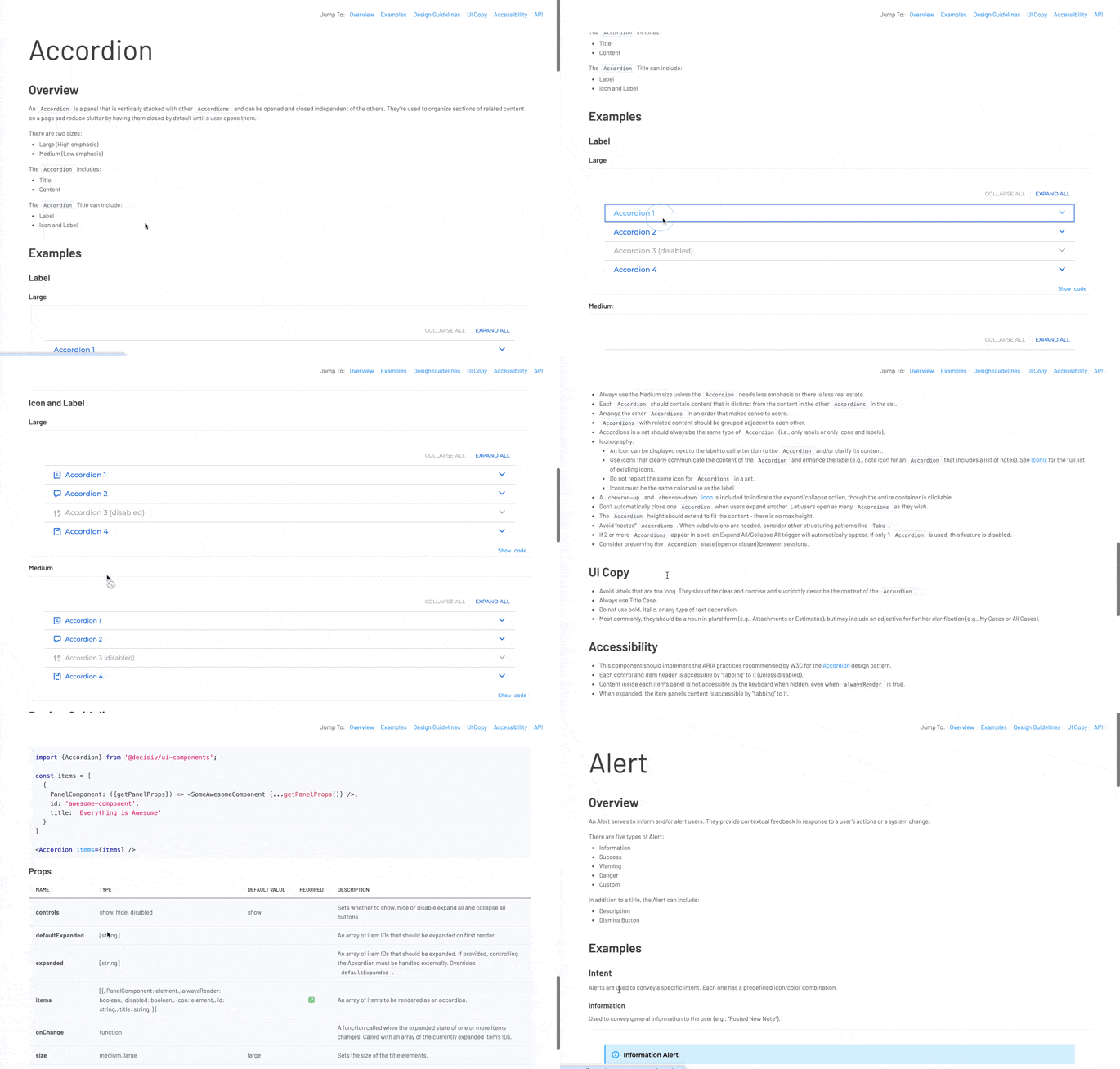
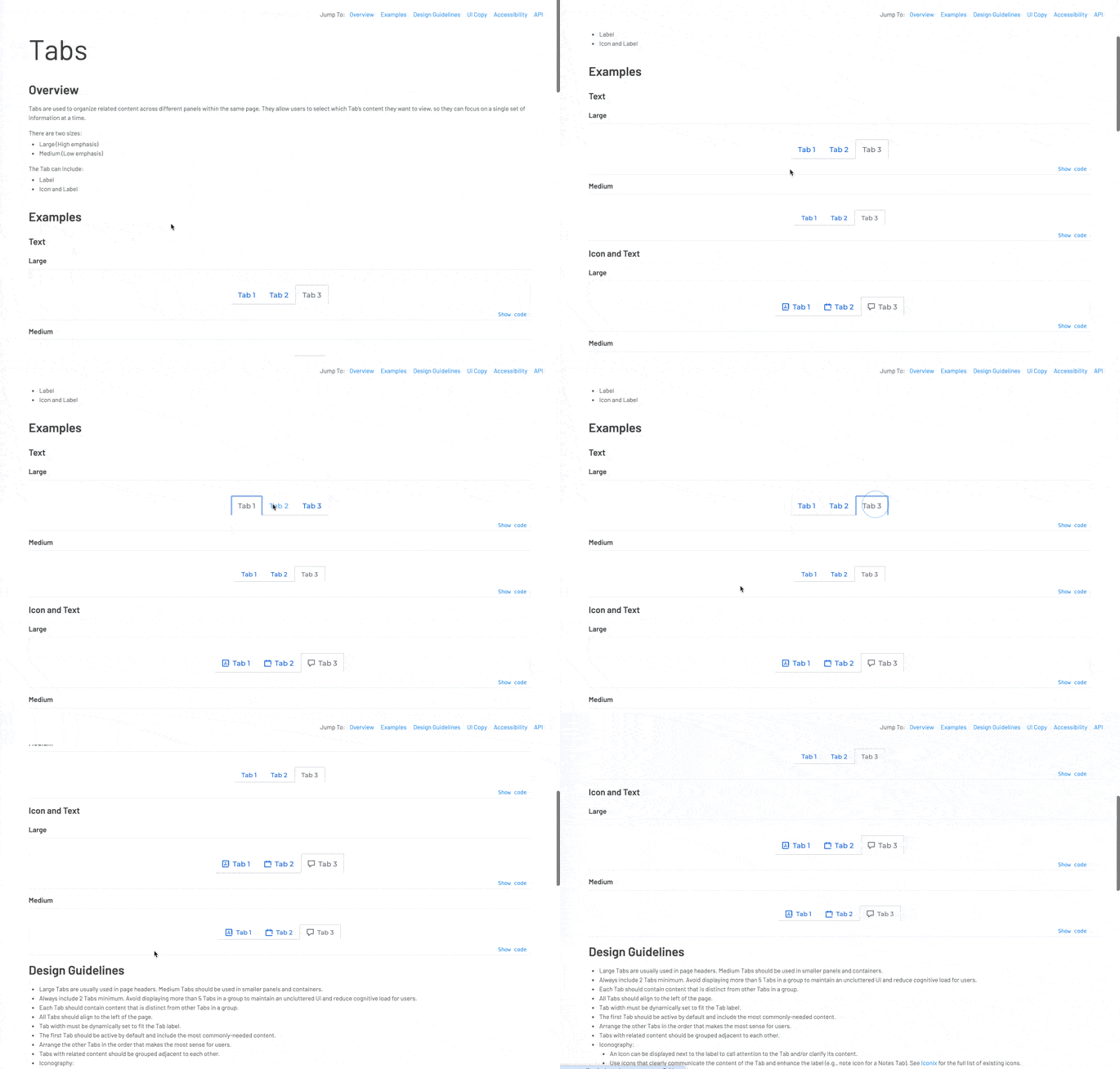
Decisiv’s products are built around managing large volumes of structured data, and Table, Accordion, and Tabs were the core ways we organized it. Table was the most used and most complex of the three. Designing it meant working through two emphasis levels, two densities, multiple toolbar and footer configurations, fixed columns, grouped rows, multiselect, and drag-and-drop sorting. Cell content alone could be text, links, avatars, badges, checkboxes, buttons, or tags.
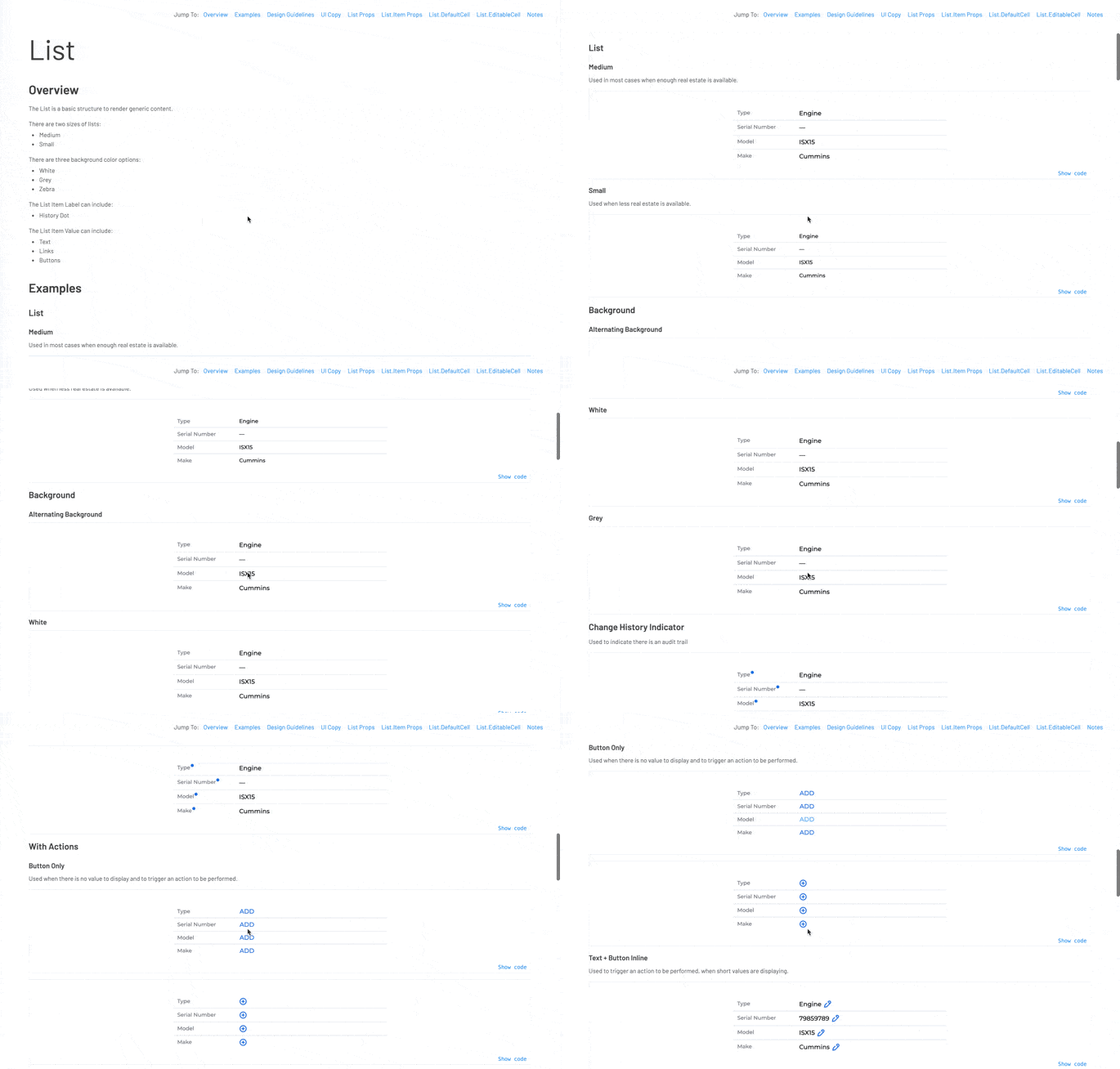
List came later. It matched a UI pattern that already existed widely across the Case application, so building it meant formalizing something teams had been implementing ad hoc for years. It was one of the last components added to the system.
Controls
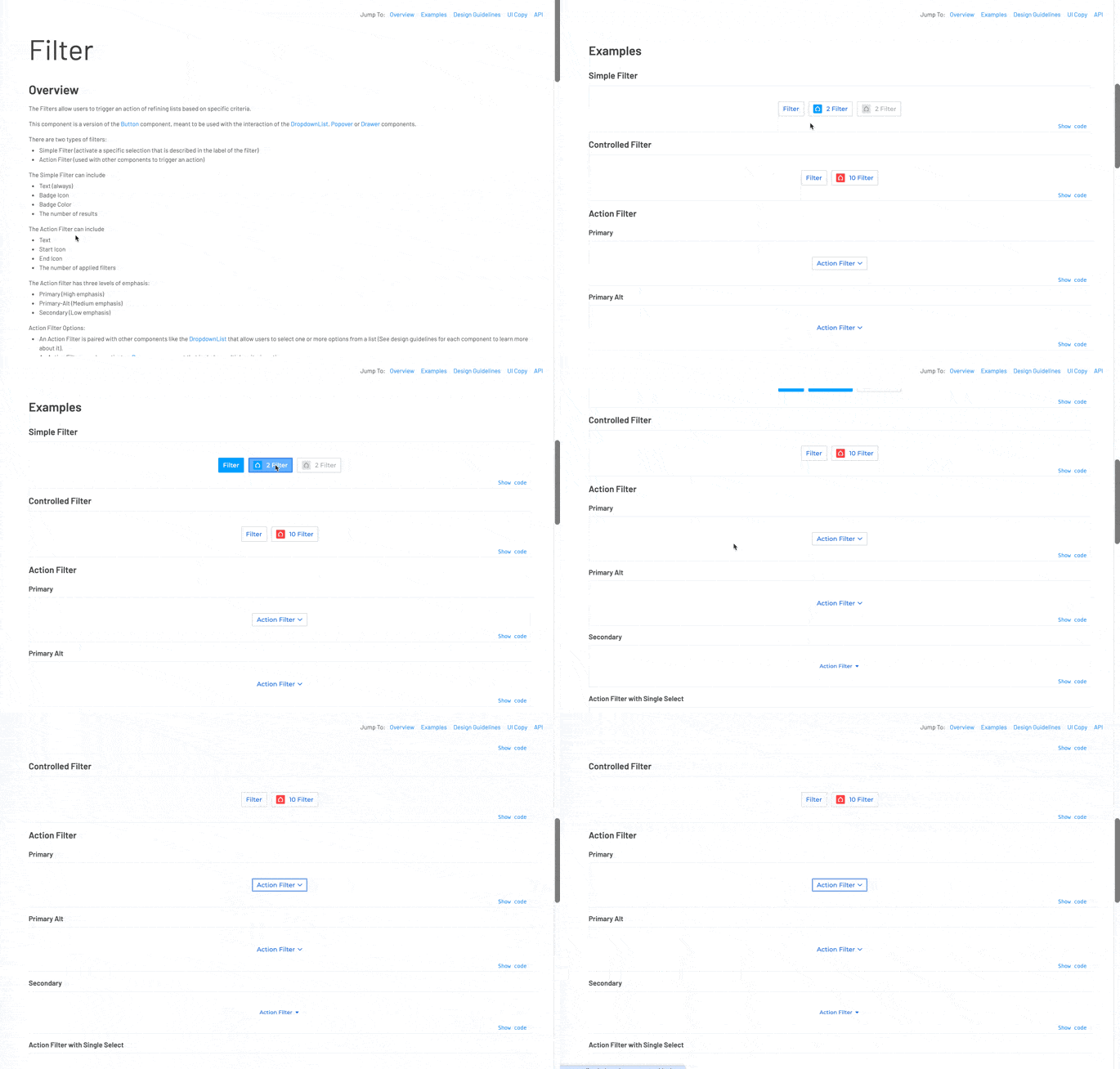
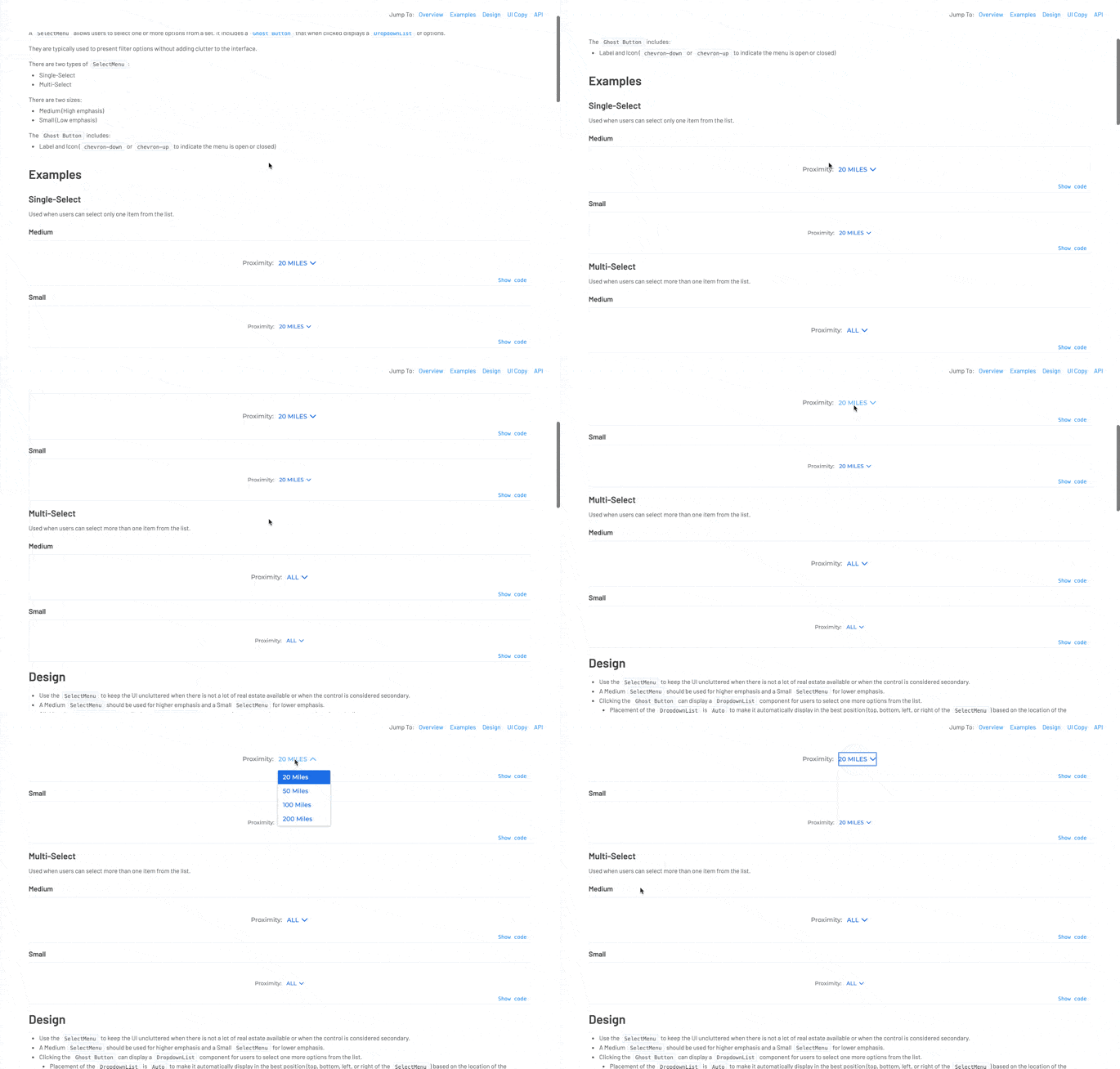
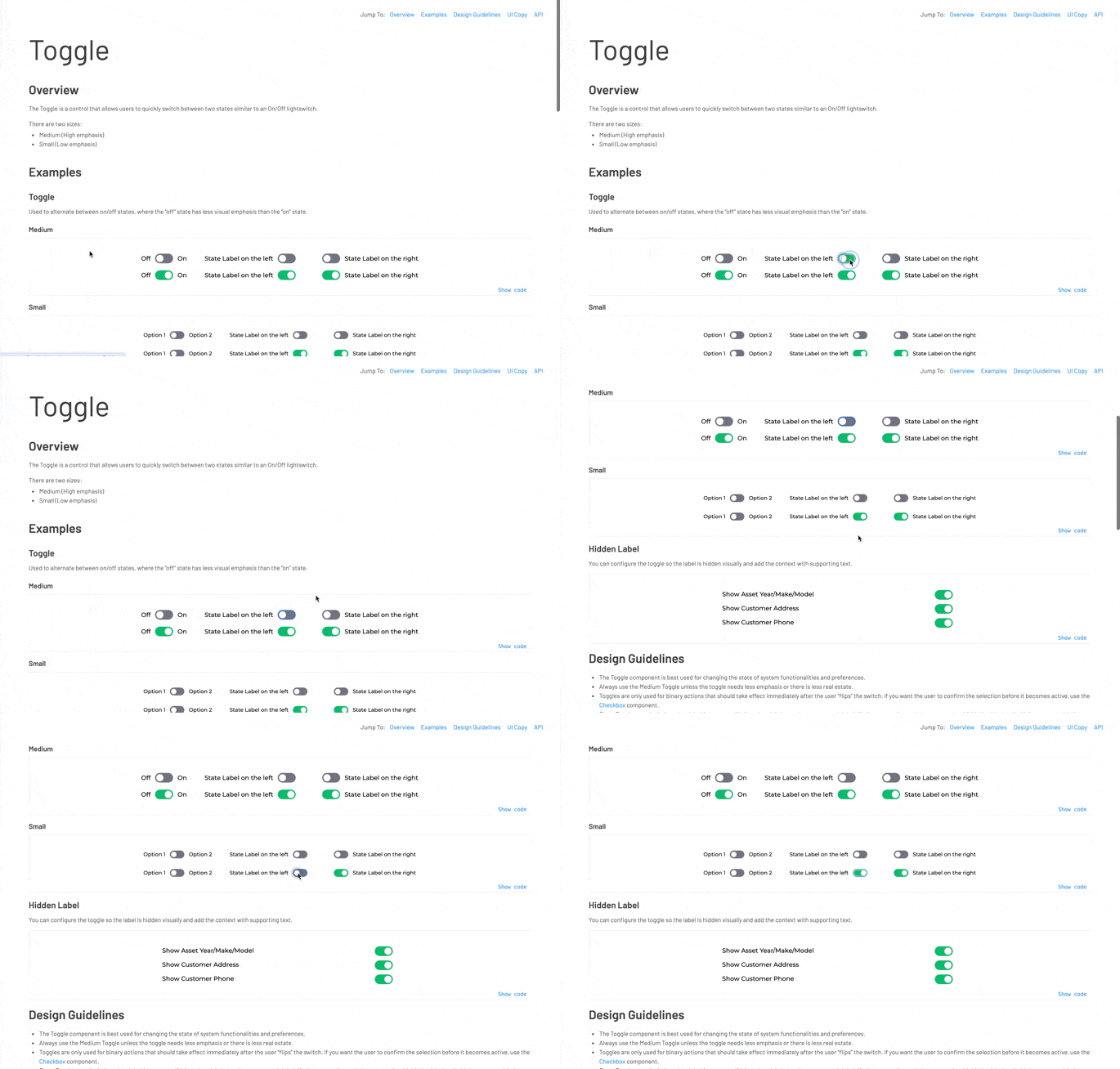
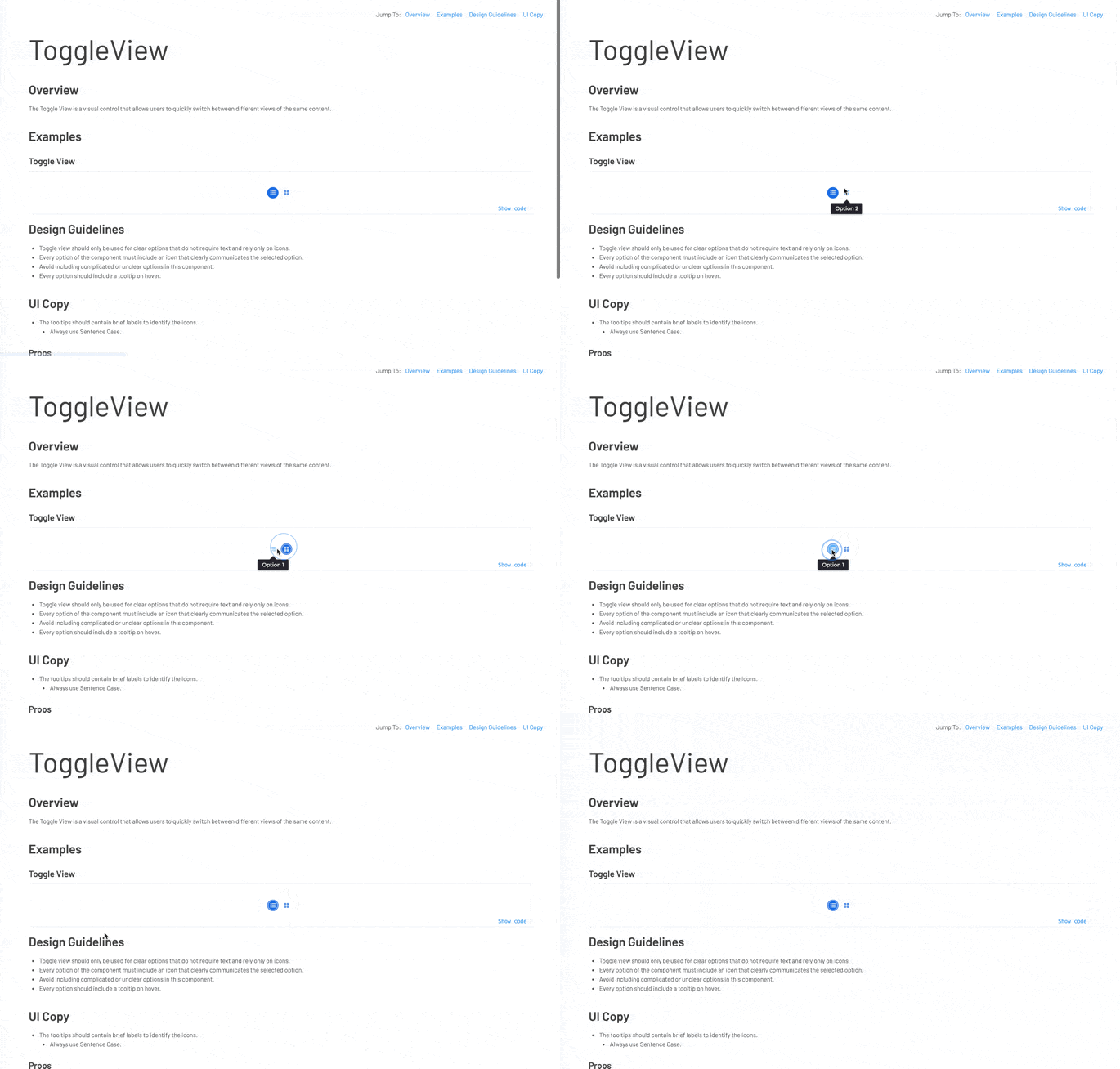
Controls was a mix of small, foundational elements: Color Picker, Filter, Select Menu, Toggle, and Toggle View. Toggle was one of the few components we redesigned after it shipped. Our guideline was that toggles should only be used for changes that took immediate effect: most of our admin pages relied on a save button instead, so toggles were rare early on. That changed as we took on more mobile-driven work, where the immediate-effect pattern fit naturally. The original toggle, a thin track with a dot, didn’t have enough visual presence on mobile: users had to rely on position alone to tell whether a setting was on or off. We redesigned it to use color to convey state, making it scannable at a glance.
Dropdowns
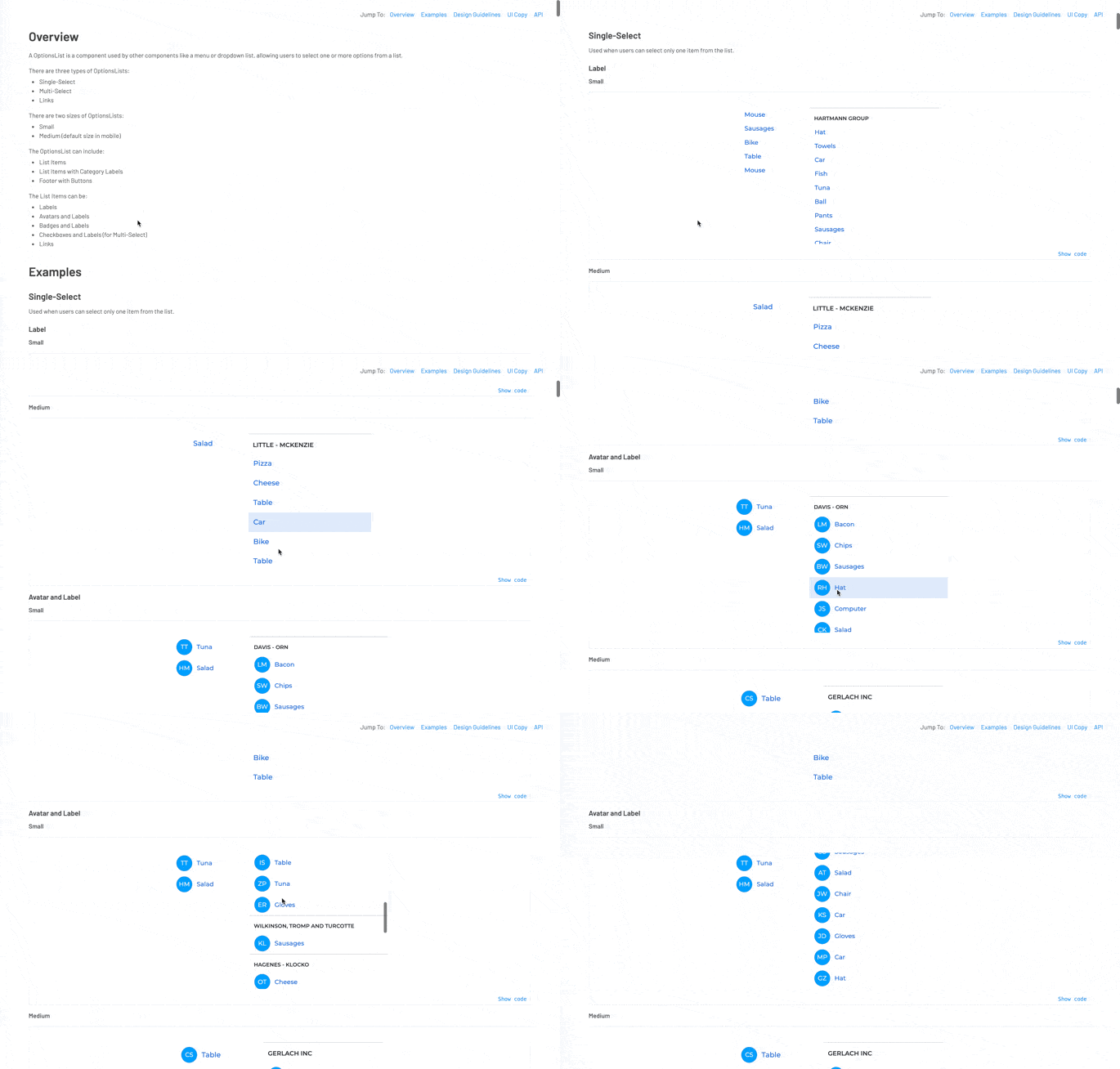
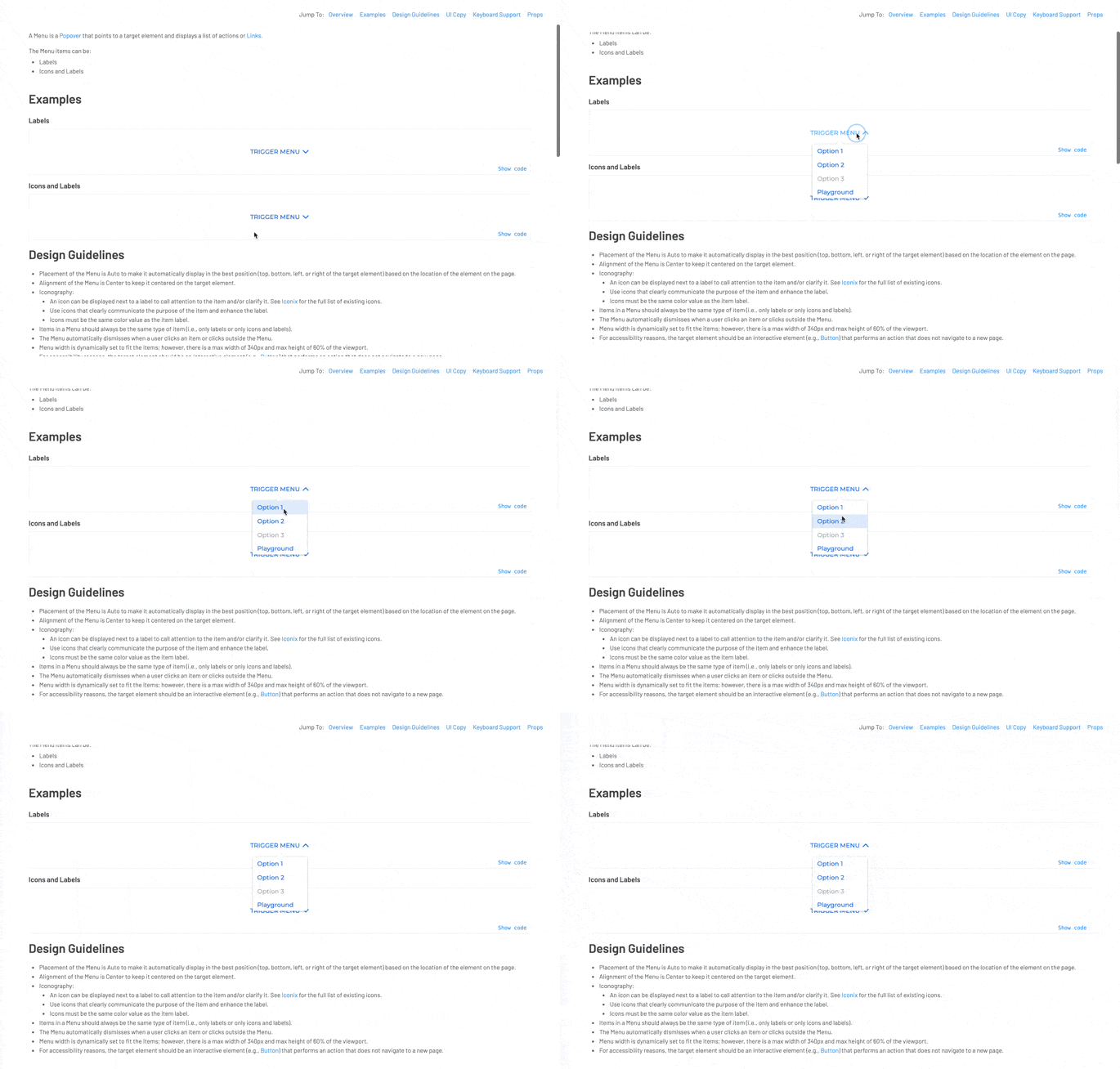
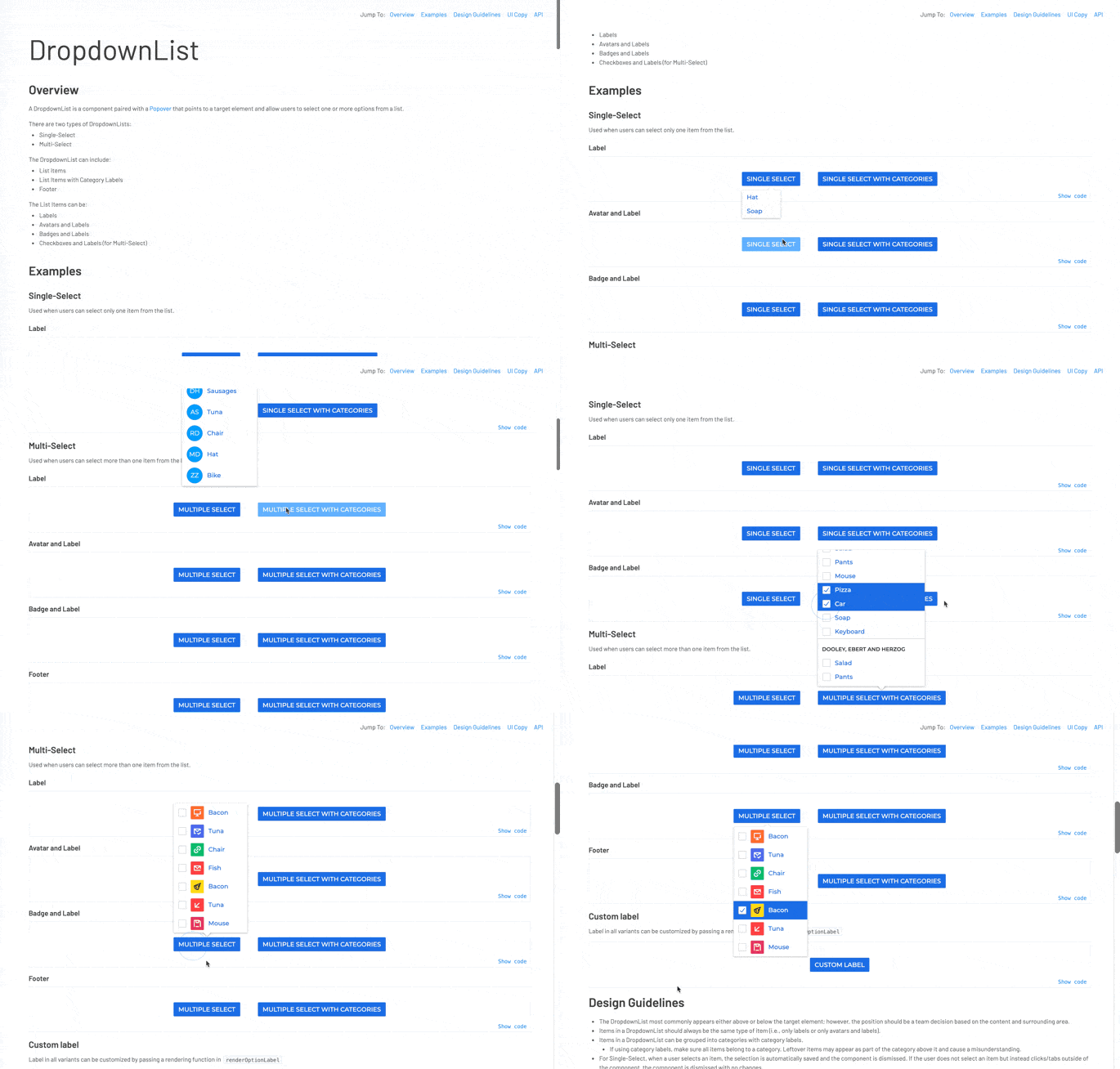
Options List was the shared building block behind Menu and Dropdown List: a flexible list that could include checkboxes, single or multi-select, avatars, or badges. Menu and Dropdown List each paired it with a popover and a trigger, then layered their own interaction logic on top. In a menu, selecting an item closed the popover immediately. In a dropdown list, whether it closed depended on the business rules for that instance: single-select closed on selection, multi-select stayed open.
Accents
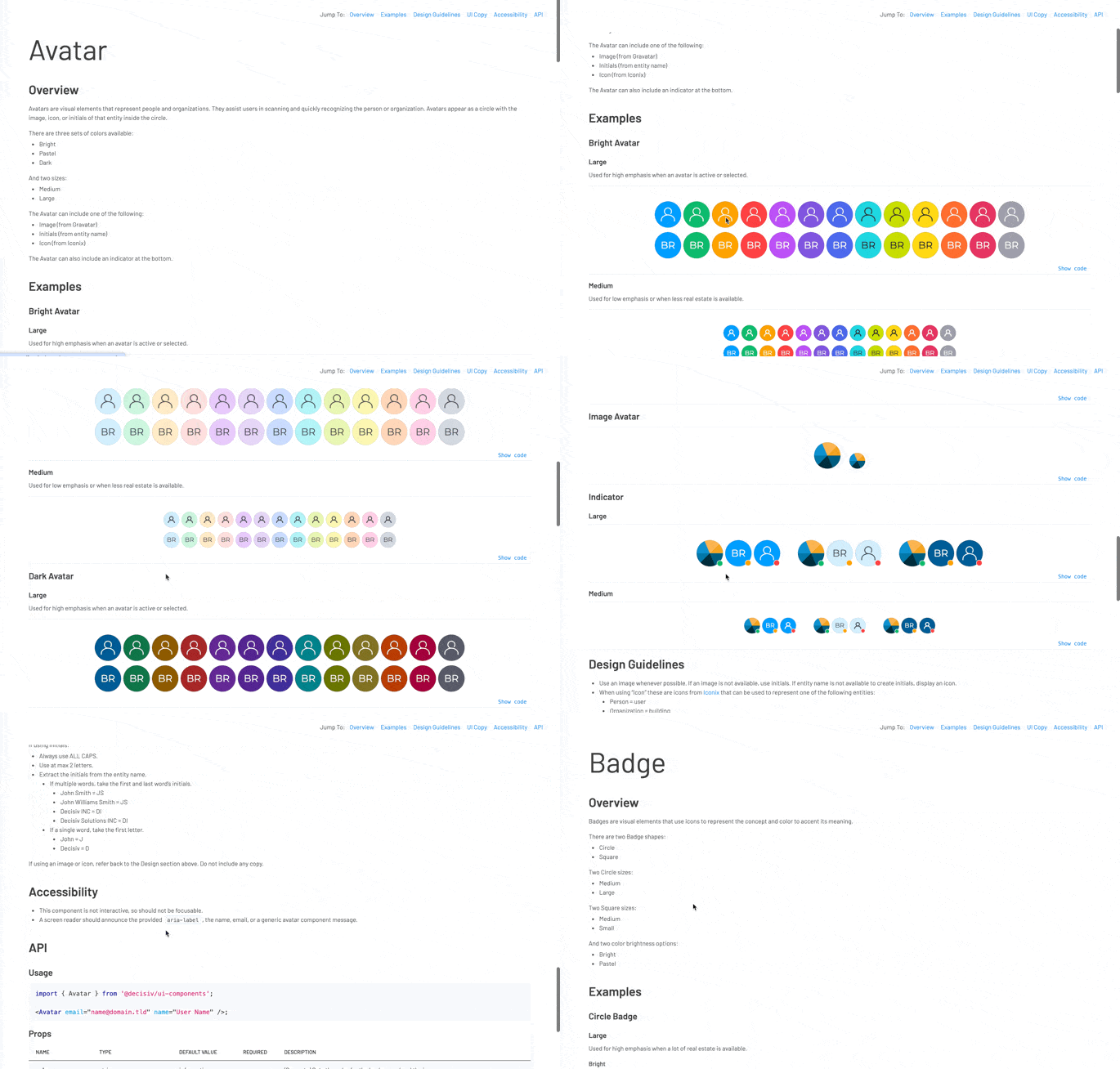
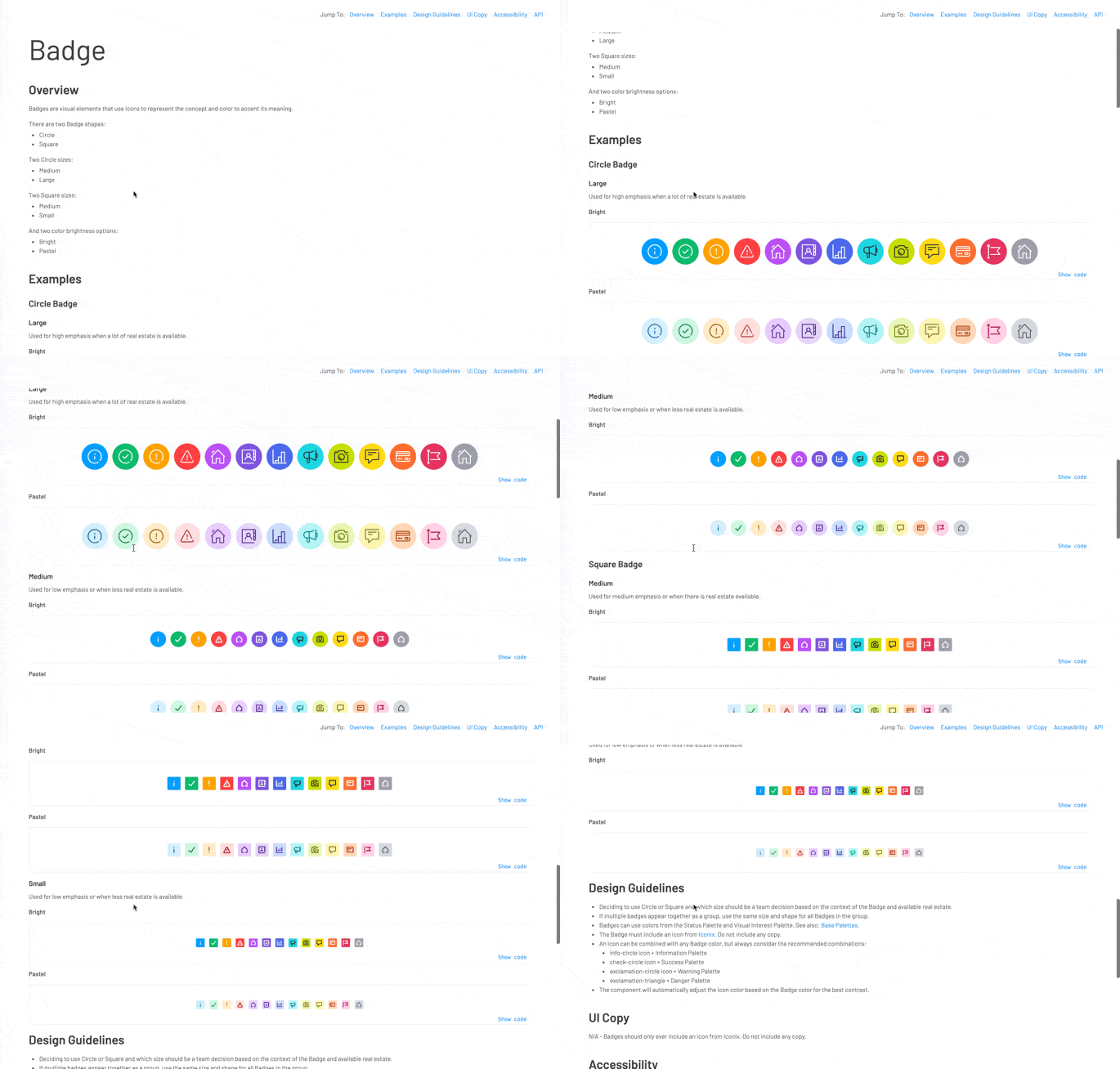
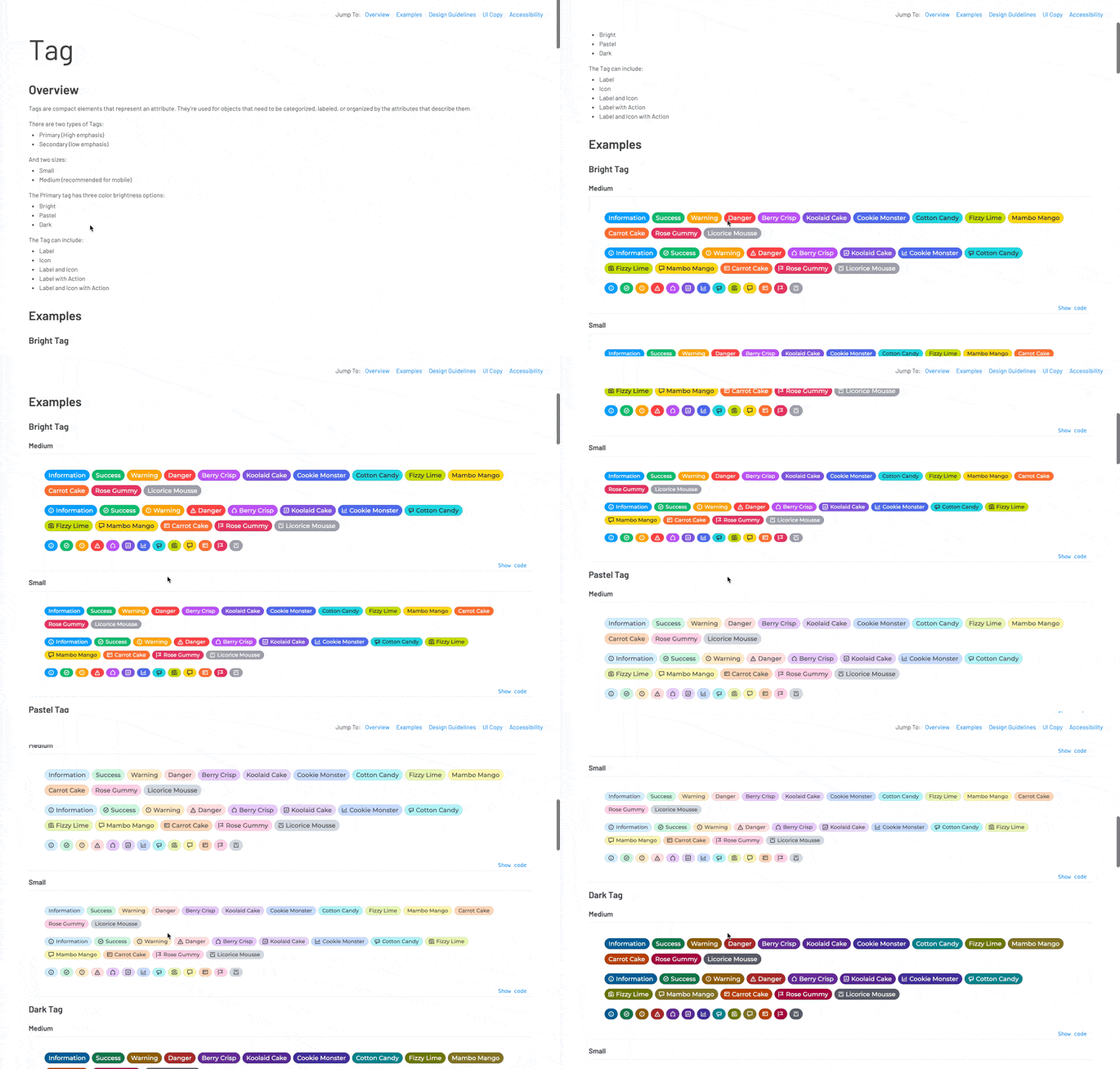
Badge and Tag started out using only the accent color palette, the same colors used for visual interest and data differentiation elsewhere in the system. That was enough at first. But as teams adopted them for more visual indicators across the platform, especially Badge, the accent palette alone didn’t give enough granularity. We expanded both to support pastel and dark variants. Tag differs from Badge in that it carries text rather than just a status color, but the two share the same underlying palette logic.
Patterns
The components were flexible by design, but flexibility without conventions led to subtle inconsistencies across the platform. One designer might use a text-only button for an edit action; another would add an icon. The gaps kept surfacing in the questions new designers asked as they onboarded, so we started auditing existing implementations and writing shared guidelines, prioritizing actions and forms first.
We never got as far as we intended. Design-ops time was the first thing to get deprioritized whenever project work picked up, and after the design team shrank to just two of us, there was even less room for it. Patterns kept forming on their own, designers converged on the same solutions without meaning to, but most of that agreement stayed undocumented, carried in people’s heads rather than written down.
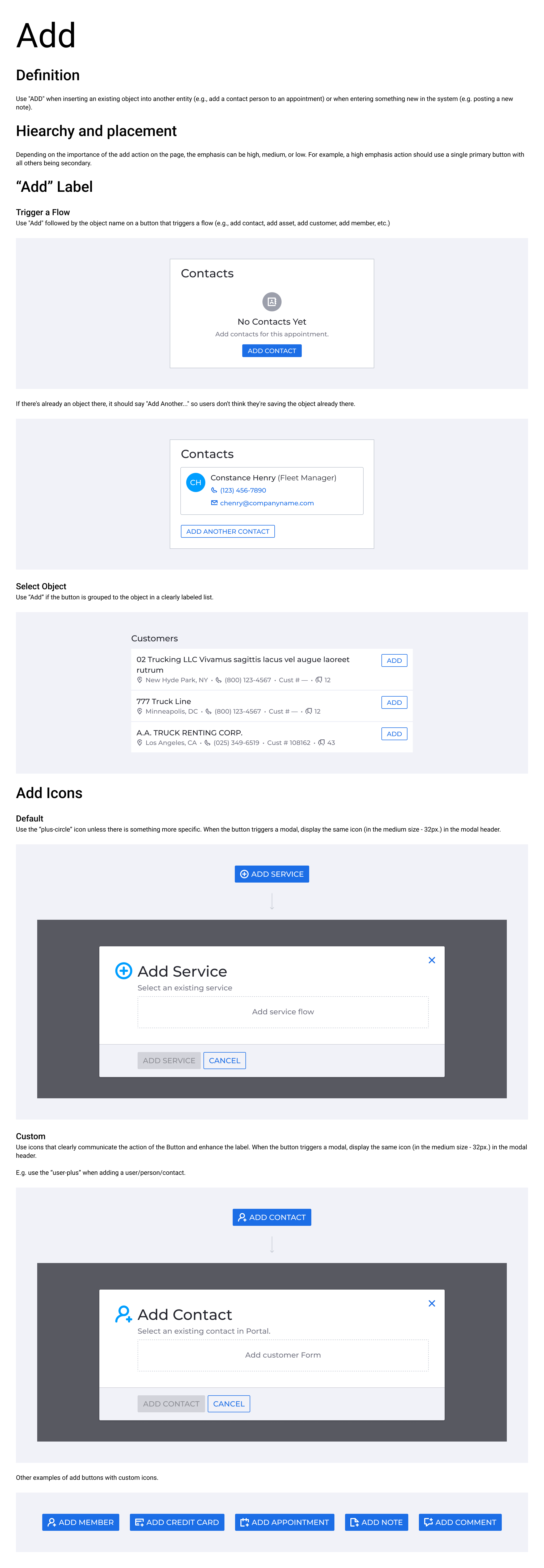
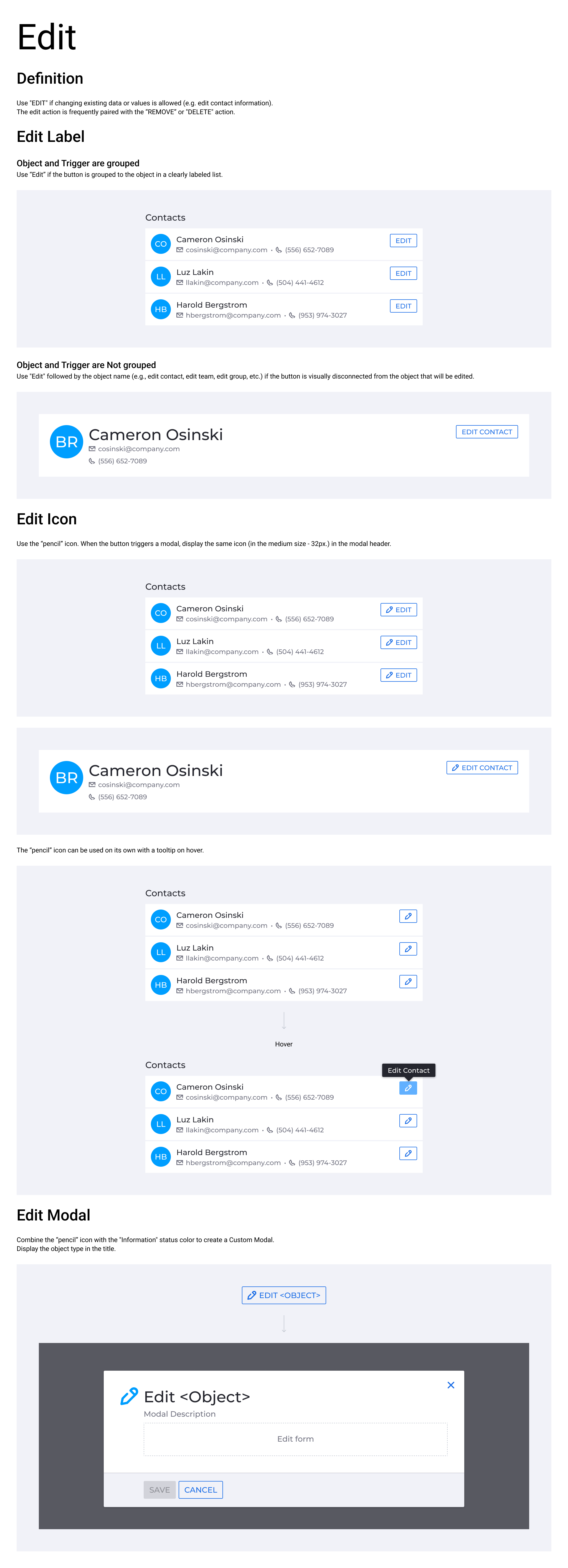
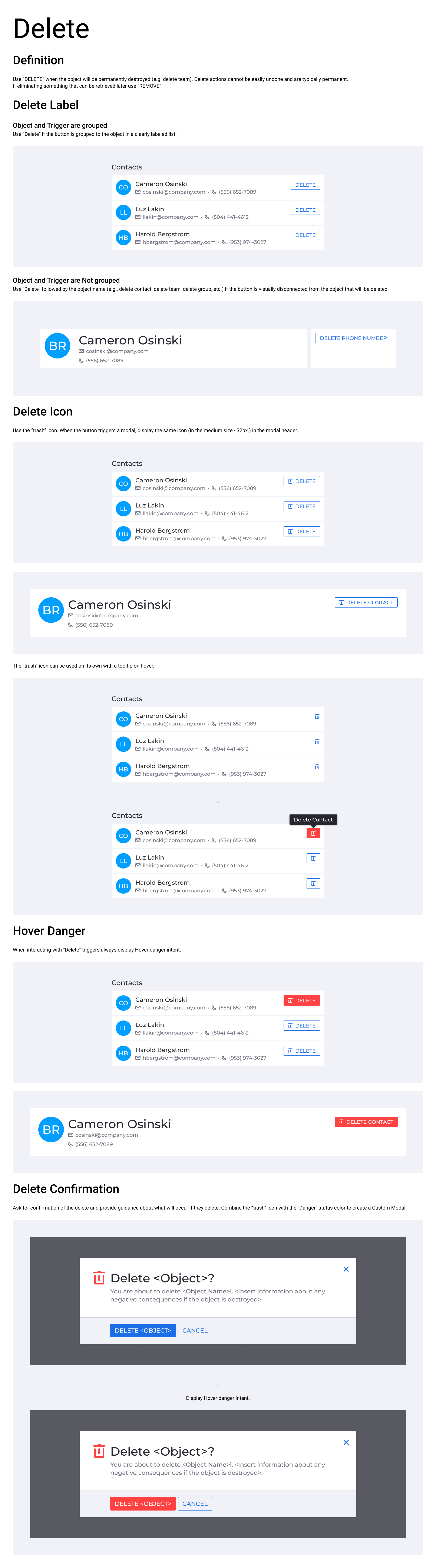
Examples of common actions patterns.
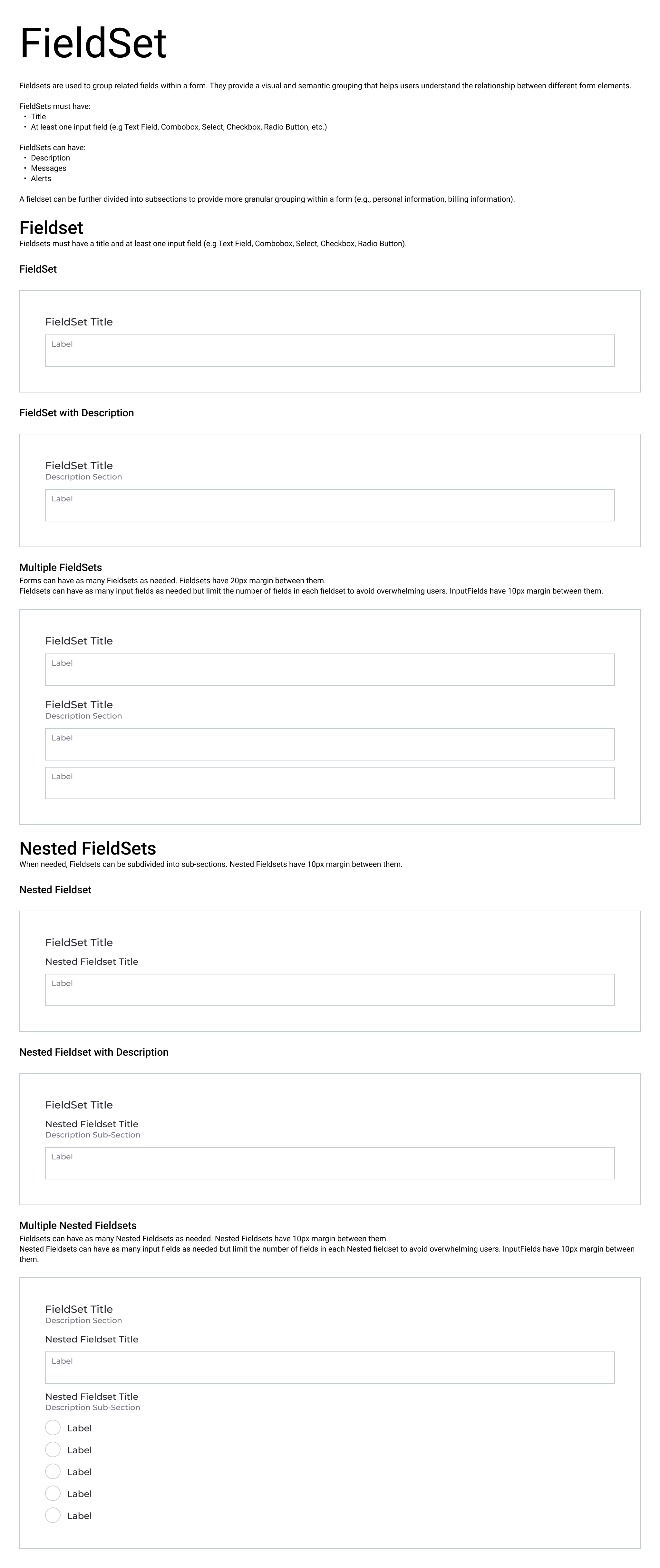
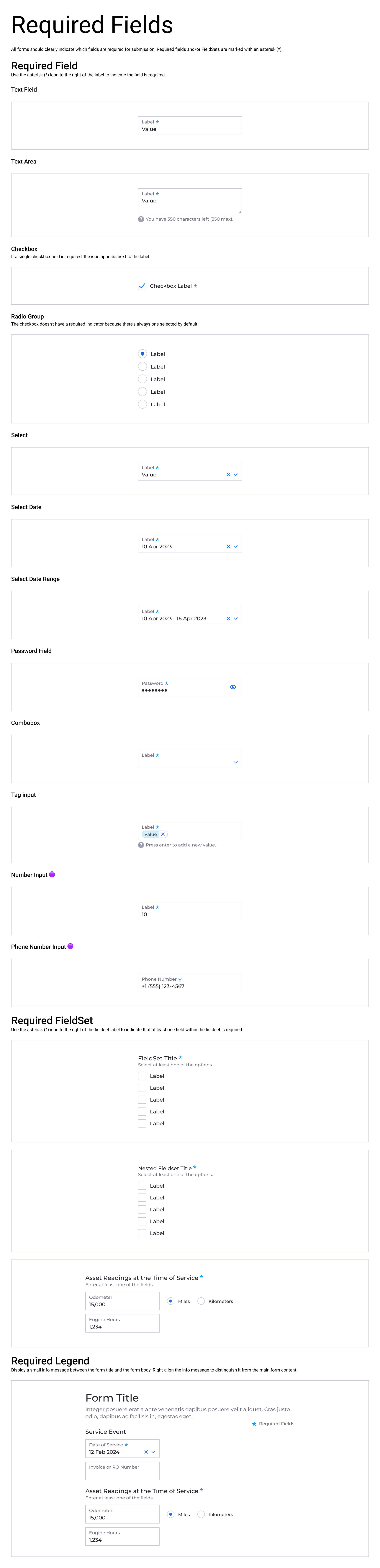
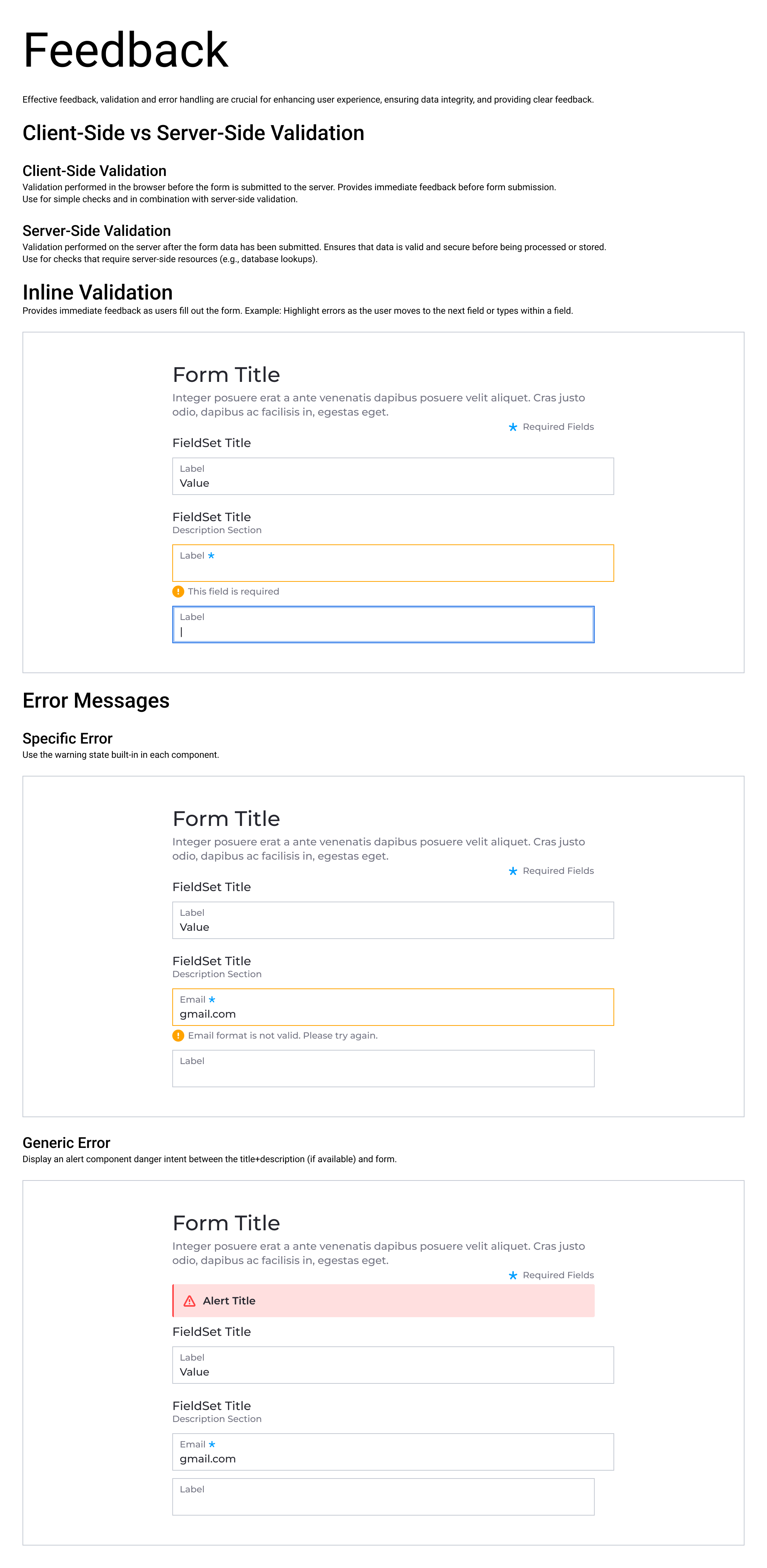
Examples of forms patterns.
Impact
KeyDS shipped and was adopted in new applications, including Sentinel, and gradually became the default for new features on legacy products, including the redesigned tracker and case-charges workflows in Tracker and Update Charges. Legacy and KeyDS coexisted. For new applications and any feature being meaningfully redesigned, the answer was straightforward: KeyDS.
By the time I left, the system had 43 production components, 276 custom icons, and years of continuous use behind it. Engineers started building internal tools using KeyDS components without involving design at all. The team trusted it enough to self-serve.
Looking back
I’d have kept a decision log. Storybook documented the end state of every component, but not the reasoning behind it, and after years pass you forget why an approach won out over the alternatives. Institutional knowledge lived in people’s heads, which is a fragile place for it to live.
The icon workflow was another gap. Designers copied glyphs from Storybook into Figma rather than pulling from a live source, so an icon could be finalized before the font caught up, briefly putting designs and documentation out of sync. It also handled larger variants poorly, which occasionally confused handoffs with developers unfamiliar with the system.
A few decisions I’d revisit if I could. I went along with a custom focus-state treatment I didn’t think was necessary, browsers handle that well by default, and I didn’t push back hard enough. Tabs never felt fully resolved, the filled selected-tab style didn’t travel well across different surfaces. And Table, solid at first, started showing its age as more edge cases piled on. None of these got rebuilt before I left.
Other Case Studies